> For the complete documentation index, see [llms.txt](https://docs.parcellab.com/docs/llms.txt). Markdown versions of documentation pages are available by appending `.md` to page URLs; this page is available as [Markdown](https://docs.parcellab.com/docs/developers/status-updates/order-status-page-configuration.md).
# Order Status Page Configuration
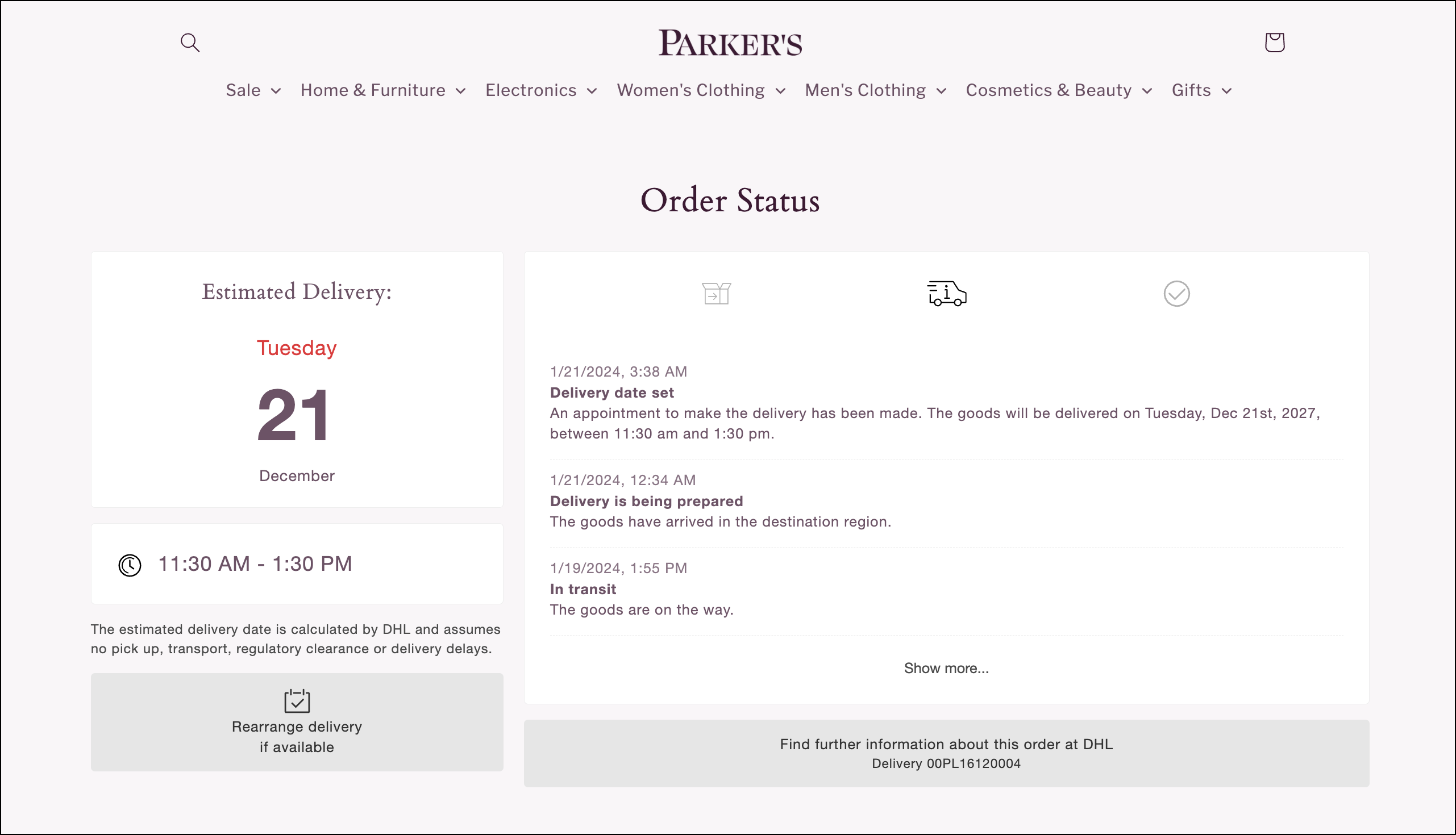
Configure a fully embedded Order Status page in your shop with all the relevant delivery status information and customizable content to promote your brand.
## Quick Install
To insert the JavaScript snippet onto a page on your website or online shop:
1. Create an empty landing page (for example: at /track-and-trace).
2. Copy the following snippet and paste it somewhere in the \
(*not* the \) of your page where you want the order status to be displayed.
{% hint style="warning" %}
You will need to insert your parcelLab account ID in the `plUserId` field when copying the tracking snippet below. Your account is a 7 digit number that can be found on [app.parcellab.com](https://app.parcellab.com/service/account/account/).
{% endhint %}
This will automatically load our JavaScript snippet and default CSS. The plugin will be rendered in the defined DOM node.
<div id="parcellab-track-and-trace">
<img src="https://cdn.parcellab.com/img/loading-spinner-1.gif" alt="loading" />
</div>

<script>
  function plTrackAndTraceStart() {
        window.parcelLabTrackAndTrace.initialize({
          plUserId: TYPE_YOUR_USER_ID_HERE,
          lang: 'en', // default language if not specified for order
          show_searchForm: true,
          show_zipCodeInput: true,
          show_articleList: true,
          use_campaign_banners: true
        });
        var linkTag = document.createElement('link');
        linkTag.rel = 'stylesheet';
        linkTag.href = 'https://cdn.parcellab.com/css/v5/main.min.css';
        document.getElementsByTagName('head')[0].appendChild(linkTag);
  }
</script>
<script async onload="plTrackAndTraceStart()"
src="https://cdn.parcellab.com/js/v5/main.min.js"></script>
### Additional Options
You can configure the plugin adding the options to the snippet above. The following code example includes all possible additions.
```javascript
const options = {
/* onRendered, // optional function to be invoked once the plugin has rendered */
/* containerId, // optional ID string of the div element you want to use as root
container for rendering the plugin. Defaults to "parcellab-track-and-trace". */
/* customTranslations, // optional valid custom translation object */
/* all other options that are possible in the url can be passed here as well */
}
// these options should be passed to the plugin like this:
window.parcelLabTrackAndTrace.initialize(options);
```
#### onRendered Hook
You can use the `onRendered` option to alter the DOM programmatically after the plugin has rendered its content. This will overwrite any CSS styling that has been applied to the targeted elements.
function cb(pluginState) {
    var checkpointsContainer = document.querySelector(".pl-checkpoints");
    // It is important to always check that the element is already painted before attempting to modify it.
    if (checkpointsContainer) {
            checkpointsContainer.style.backgroundColor = "blue";
    }
}
...
window.parcelLabTrackAndTrace.initialize( { onRendered: cb })
{% hint style="info" %}
As the plugin was created in React, modifying, adding children to, or removing children from its elements may lead to inconsistent visual results or crashes. It is advisable to proceed with caution.
If you want to modify or replace elements, it is recommended that their styles are updated so they do not display visually (that is: `display: none`) in order to make room for your new element or copy of an existing element that gets appended to the page instead.
{% endhint %}
Your onRendered function may also expect to receive an object with data about the Order Status page, such as:
* Article list information (if available)
* Checkpoints information
* Which parcel is displayed as the active tracking (for multi-parcel orders)
* Function to select the active tracking to be displayed, that can be called programmatically
* Options applied to customize and configure the plugin during its initialization
#### Custom Translations
You can change the static plugin text parts with your own translations by adding the `customTranslations` attribute to your `options`, and then inserting your custom text. If you do not define a language in your `customTranslations`, the plugin will revert to the original text when rendering in this language.
Custom Translations Example
In this example, the text is being changed for the order search form.
{% code title="custom-translations.js" %}
```javascript
...
```
{% endcode %}
List of Customizable Translation Keys
```json
{
"searchBtn": "Search",
"delivery": "Delivery",
"more": "Show more...",
"less": "Show less...",
"moreArticles": "Show more...",
"orderNo": "Order",
"predictions": {
"OutForDelivery": "The package will arrive today.",
"DestinationDeliveryCenter": "The package will arrive tomorrow."
},
"openingHours": "Opening hours",
"weekDays": [
"Sunday",
"Monday",
"Tuesday",
"Wednesday",
"Thursday",
"Friday",
"Saturday"
],
"alwaysOpened": "24 hours opened",
"closesIn": "Closes in about",
"opensIn": "Opens in about",
"openingHoursWarning": "Opening hours may vary due to {{warning}}",
"error": {
"delivery": "We have not yet received tracking data for your order.",
"search": "Unfortunately, no information was found for this delivery.",
"userId": "A plUserId is required if you want to use the search form."
},
"optinTitle": "Get text updates about your delivery",
"optinSubmitBtn": "Text me",
"optinSmallText": "You will only receive SMS communications on the delivery of this order",
"optinInvalidPhone": "Invalid phone number",
"optedintext": "You have already opted-in for SMS notification",
"searchOrder": "Search order number",
"zip": "Zip code",
"enterZipCode": "Please enter your zip code to get access to all information.",
"wrongZip": "This zip code is wrong.",
"search": "Search",
"containsOf": "consists of",
"deliveries": "deliveries",
"showPickuplocation": "Show pickup location",
"liveDelivery": "Live tracking",
"articleList": "Items in this package",
"deliveryAddress": "Delivery address",
"liveTrackingLastUpdate": "Last update",
"liveTrackingStationsNext": "The driver's on his way to you.",
"liveTrackingStation": "{{openStops}} stopover",
"liveTrackingStations": "{{openStops}} stopovers",
"liveTrackingCaption": "until your shipment arrives.",
"liveTrackingCaptionNext": "You are the next stopover.",
"liveTrackingPrediction": "Arrival time approx.",
"defaultSplitOrderWarningMessage": "Please Note: Your order might arrive in multiple packages at different times.",
"aria": {
"estimatedDeliveryTime": "estimated delivery time",
"showOpeningHours": "show opening hours",
"thumbsUp": "Give thumbs up",
"thumbsDown": "Give thumbs down",
"submitZipCode": "submit zip code",
"closeNote": "close note",
"orderProcessed": "Order is at step 1 out of 3: Order processed",
"orderInTransit": "Order is at step 2 out of 3: Order in transit",
"orderDelivered": "Order is at step 3 out of 3: Order delivered",
"campaignBanner": "Advertisement banner",
"searchOrderNo": "Search for order number",
"enterZip": "Enter zip code",
"showMoreBtnLabel": {
"checkpoints": {
"more": "Show all tracking history",
"less": "Show recent tracking history"
},
"articles": {
"more": "Show all purchased items",
"less": "Collapse list of purchased items"
}
},
"actionBoxSection": "current tracking information",
"trackingsSection": "tracking history",
"articlesSection": "articles details",
"tabsNavigation": "order's packages",
"warning": "Warning",
"sadEmoji": "Sad emoji face"
},
"countryName": {
"AFG": "Afghanistan",
"ALB": "Albania",
"DZA": "Algeria",
"ASM": "American Samoa",
"AND": "Andorra",
"AGO": "Angola",
"AIA": "Anguilla",
"ATG": "Antigua and Barbuda",
"ARG": "Argentina",
"ARM": "Armenia",
"ABW": "Aruba",
"AUS": "Australia",
"AUT": "Austria",
"AZE": "Azerbaijan",
"BHS": "Bahamas",
"BHR": "Bahrain",
"BGD": "Bangladesh",
"BRB": "Barbados",
"BLR": "Belarus",
"BEL": "Belgium",
"BLZ": "Belize",
"BEN": "Benin",
"BMU": "Bermuda",
"BTN": "Bhutan",
"BOL": "Bolivia",
"BIH": "Bosnia and Herzegovina",
"BWA": "Botswana",
"BRA": "Brazil",
"IOT": "British Indian Ocean Territory",
"VGB": "Virgin Islands, British",
"BRN": "Brunei",
"BGR": "Bulgaria",
"BFA": "Burkina Faso",
"BDI": "Burundi",
"CPV": "Cape Verde",
"KHM": "Cambodia",
"CMR": "Cameroon",
"CAN": "Canada",
"CYM": "Cayman Islands",
"CAF": "Central African Republic",
"TCD": "Chad",
"CHL": "Chile",
"CHN": "People's Republic of China",
"COL": "Colombia",
"COM": "Comoros",
"COK": "Cook Islands",
"CRI": "Costa Rica",
"HRV": "Croatia",
"CUB": "Cuba",
"CUW": "Curaçao",
"CYP": "Cyprus",
"CZE": "Czech Republic",
"COD": "Democratic Republic of the Congo",
"DNK": "Denmark",
"DJI": "Djibouti",
"DMA": "Dominica",
"DOM": "Dominican Republic",
"TLS": "Timor-Leste",
"ECU": "Ecuador",
"EGY": "Egypt",
"SLV": "El Salvador",
"GNQ": "Equatorial Guinea",
"ERI": "Eritrea",
"EST": "Estonia",
"SWZ": "Eswatini",
"ETH": "Ethiopia",
"FLK": "Falkland Islands (Malvinas)",
"FRO": "Faroe Islands",
"FSM": "Micronesia, Federated States of",
"FJI": "Fiji",
"FIN": "Finland",
"FRA": "France",
"GAB": "Gabon",
"GEO": "Georgia",
"DEU": "Germany",
"GHA": "Ghana",
"GIB": "Gibraltar",
"GRC": "Greece",
"GRL": "Greenland",
"GRD": "Grenada",
"GTM": "Guatemala",
"GGY": "Guernsey",
"GIN": "Guinea",
"GNB": "Guinea-Bissau",
"GUY": "Guyana",
"HTI": "Haiti",
"HND": "Honduras",
"HUN": "Hungary",
"ISL": "Iceland",
"IND": "India",
"IDN": "Indonesia",
"IRN": "Iran",
"IRQ": "Iraq",
"IRL": "Ireland",
"IMN": "Isle of Man",
"ISR": "Israel",
"ITA": "Italy",
"CIV": "Cote D'Ivoire",
"JAM": "Jamaica",
"JPN": "Japan",
"JEY": "Jersey",
"JOR": "Jordan",
"KAZ": "Kazakhstan",
"KEN": "Kenya",
"KIR": "Kiribati",
"KOS": "Kosovo",
"KWT": "Kuwait",
"KGZ": "Kyrgyzstan",
"LAO": "Laos",
"LVA": "Latvia",
"LBN": "Lebanon",
"LSO": "Lesotho",
"LBR": "Liberia",
"LBY": "Libya",
"LIE": "Liechtenstein",
"LTU": "Lithuania",
"LUX": "Luxembourg",
"MDG": "Madagascar",
"MWI": "Malawi",
"MYS": "Malaysia",
"MDV": "Maldives",
"MLI": "Mali",
"MLT": "Malta",
"MHL": "Marshall Islands",
"MRT": "Mauritania",
"MUS": "Mauritius",
"MEX": "Mexico",
"MDA": "Moldova",
"MCO": "Monaco",
"MNG": "Mongolia",
"MNE": "Montenegro",
"MSR": "Montserrat",
"MAR": "Morocco",
"MOZ": "Mozambique",
"MMR": "Myanmar",
"NAM": "Namibia",
"NRU": "Nauru",
"NPL": "Nepal",
"NLD": "Netherlands",
"NZL": "New Zealand",
"NIC": "Nicaragua",
"NER": "Niger",
"NGA": "Nigeria",
"NIU": "Niue",
"PRK": "North Korea",
"MKD": "North Macedonia",
"NOR": "Norway",
"OMN": "Oman",
"PAK": "Pakistan",
"PLW": "Palau",
"PSE": "State of Palestine",
"PAN": "Panama",
"PNG": "Papua New Guinea",
"PRY": "Paraguay",
"PER": "Peru",
"PHL": "Philippines",
"PCN": "Pitcairn",
"POL": "Poland",
"PRT": "Portugal",
"QAT": "Qatar",
"COG": "Republic of the Congo",
"ROU": "Romania",
"RUS": "Russia",
"RWA": "Rwanda",
"SHN": "Saint Helena",
"KNA": "Saint Kitts and Nevis",
"LCA": "Saint Lucia",
"VCT": "Saint Vincent and the Grenadines",
"SMR": "San Marino",
"SAU": "Saudi Arabia",
"SEN": "Senegal",
"SRB": "Serbia",
"SYC": "Seychelles",
"SLE": "Sierra Leone",
"SGP": "Singapore",
"SXM": "Sint Maarten",
"SVK": "Slovakia",
"SVN": "Slovenia",
"SLB": "Solomon Islands",
"SOM": "Somalia",
"ZAF": "South Africa",
"SGS": "South Georgia and the South Sandwich Islands",
"KOR": "South Korea",
"SSD": "South Sudan",
"ESP": "Spain",
"LKA": "Sri Lanka",
"SDN": "Sudan",
"SUR": "Suriname",
"SWE": "Sweden",
"CHE": "Switzerland",
"SYR": "Syria",
"STP": "São Tomé and Príncipe",
"WSM": "Samoa",
"TWN": "Taiwan",
"TJK": "Tajikistan",
"TZA": "Tanzania",
"THA": "Thailand",
"GMB": "The Gambia",
"TGO": "Togo",
"TKL": "Tokelau",
"TON": "Tonga",
"TTO": "Trinidad and Tobago",
"TUN": "Tunisia",
"TUR": "Turkey",
"TKM": "Turkmenistan",
"TCA": "Turks and Caicos Islands",
"TUV": "Tuvalu",
"UGA": "Uganda",
"UKR": "Ukraine",
"ARE": "United Arab Emirates",
"GBR": "United Kingdom",
"USA": "United States of America",
"URY": "Uruguay",
"UZB": "Uzbekistan",
"VUT": "Vanuatu",
"VAT": "Vatican City",
"VEN": "Venezuela",
"VNM": "Vietnam",
"ESH": "Western Sahara",
"YEM": "Yemen",
"ZMB": "Zambia",
"ZWE": "Zimbabwe"
}
}
```
### Alternative: Hosted Version
The tracking website can be reached at either [versand-status.de](https://www.versand-status.de/?courier=dhl-germany\&trackingNo=00PL16120004\&lang=en\&u=1612197), [paket-fuer-mich.de](https://www.versand-status.de/?courier=dhl-germany\&trackingNo=00PL16120004\&lang=de\&u=1612197) or [delivery-status.com](https://www.delivery-status.com/?courier=dhl-germany\&trackingNo=00PL16120004\&lang=en\&u=1612197). The URL scheme is identical to the API endpoint as seen in the following example.
{% embed url="" %}
## Using the Tracking Plugin
After the page has been prepared as described in the previous section, it is ready for use. The plugin supports tracking for single parcels, and consolidated tracking for whole orders.
{% hint style="info" %}
The tracking plugin does not use any cookies, local storage, fingerprint or anything that would require a cookie consent banner.
{% endhint %}
### Usage with Parcels
The plugin expects two parameters to be set in the URL: the `courier` and `trackingNo`. If these are set and valid, it will render an action box on the left-hand side of the page displaying the currently most relevant information and a complete history on the right-hand side of the page.
```
https://myshop.com/tracking-and-trace?courier=dhl-germany&trackingNo=00PL16120004
```
A list of possible carrier codes can be found in our documentation, although is not required as the URL to this page will be automatically generated by parcelLab.
{% content-ref url="" %}
{% endcontent-ref %}
### Usage with Orders
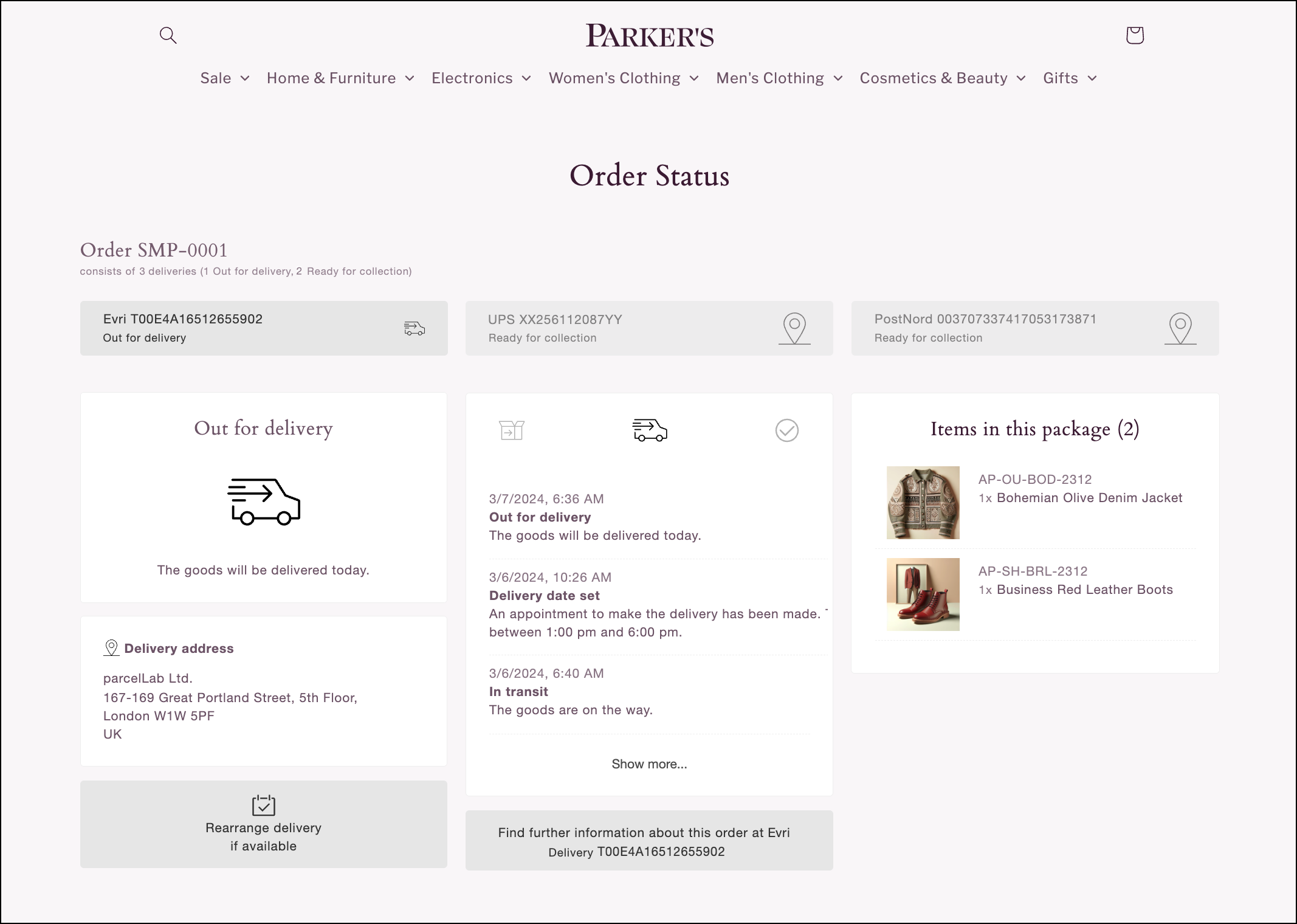
The more advanced use of the plugin is for orders. This will render all parcels of an order, generate an overview, and list all individual parcels.
```
https://myshop.com/order-status?orderNo=00PL004
```
{% hint style="info" %}
You can hide cancelled parcels in an order from displaying on the Order Status page by using the `hide_cancelled` option in the URL or JavaScript object (for example: `https://myshop.com/order-status?orderNo=00PL004&hide_cancelled=yes`). Or better, add this this as into the initialization of the plugin: \`{ ... `hide_cancelled: true ... }`
{% endhint %}
If you are running several shops with overlapping ranges of order numbers in your account, you can also set the client to limit trackings to a specific shop in the parcelLab system:
The parcelLab-internal shop ID associated with a specific shop
parcelfashion-US
## Testing
You can test the implementation and display of the order status by using our sample parcels. Append the following queries to the URL of the page where you installed our plugin.
## Typical Use Cases
You can define options by passing an object as the second argument when creating a new `parcelLab` object. The use cases below list some of the possible options.
```markup
...
```
All options below can also be set through the URL.
```http
.../track-and-trace?...&rerouteButton=left
```
### Define the Language
The tracking plugin uses the browser/system language by default.
You can change the default language to display on the Order Status page using the `lang` option.
You can choose one of these methods to do it:
* In the URL query parameters via `&lang=es`
* In the JavaScript object when loading via `lang: 'es'`
{% hint style="info" %}
When a language is written right-to-left (RTL), such as Arabic, the HTML page hosting the plugin must use `` in order for the browser to render the translated text correctly.
{% endhint %}
Supported Languages
The languages listed below are supported on the Order Status page. Use the corresponding values when changing the default language via the URL query parameter or the Javascript object.
* English: `en`
* German: `de`
* Spanish: `es`
* French: `fr`
* Italian: `it`
* Dutch: `nl`
* Danish: `da`
* Swedish: `sv`
* Norwegian: `no`
* Finnish: `fi`
* Portuguese: `pt`
* Polish: `pl`
* Romanian: `ro`
* Czech: `cs`
* Slovak: `sk`
* Slovenian: `sl`
* Bulgarian: `bg`
* Hungarian: `hu`
* Greek: `el`
* Galician: `gl`
* Basque: `eu`
* Korean: `ko`
* Japanese: `ja`
* Russian: `ru`
* Turkish: `tr`
* Catalan: `ca`
* Chinese (simplified): `zh`
* Chinese (traditional): `zh-Hant`
* Croatian: `hr`
* Estonian: `et`
* Latvian: `lv`
* Lithuanian: `lt`
* Serbian: `sr`
* Arabic: `ar` (the HTML page hosting the plugin must use ``)
* Vietnamese: `vi`
{% hint style="info" %}
If you require support for a language that is not listed, please contact your parcelLab representative.
{% endhint %}
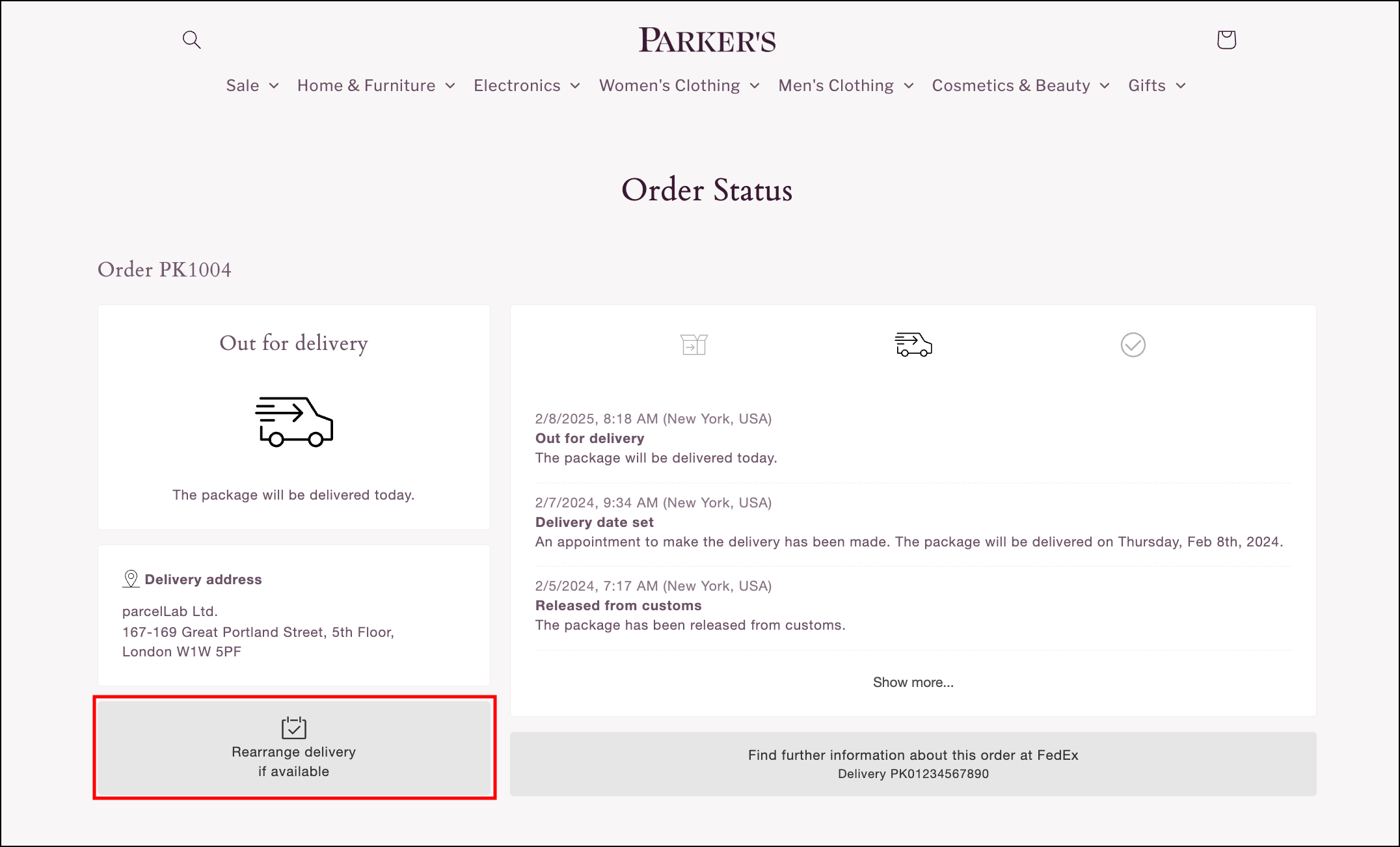
### Delivery Options
Delivery or reroute options give the recipient the choice to change how, where, and when they want to receive their parcel. This information can be provided via a link to the carrier's website by including the `rerouteButton` option. This link is displayed on the left-hand side of the Order Status page by default whenever delivery options are available.
You can change the default position of the reroute link to display on the right-hand side of the Order Status page using the `rerouteButton` option.
You can choose one of these methods to do it:
* In the URL query parameters via `&rerouteButton=right`
* In the JavaScript object when loading via `rerouteButton: 'right'`
### Carrier Information
The Order Status page can display tracking information for inter-country deliveries based on the origin carrier or the destination carrier. By default, the Order Status page displays the name of the destination carrier and the delivery status updates from the destination carrier.
However, before the parcel is handed over, you can choose to display information from the origin carrier. This can provide your customers with further information about the parcel in transit before it has arrived in the destination country.
You can display the origin carrier on the Order Status page using the `use_origin_courier` option.
You can choose one of these methods to do it:
* In the URL query parameters via `&use_origin_courier=true`
* In the JavaScript object when loading via `use_origin_courier: true`
{% hint style="info" %}
The Order Status page displays the tracking details of either the origin carrier or the destination carrier. If the `use_origin_courier` option is used, your Order Status page will *not* display tracking information from the destination carrier.
{% endhint %}
### Order Search Form
A search form can be used on the Order Status page if the tracking was not found, or no tracking number/order number was given. The search form requires the customer to enter their order number along with an authentication field (email address or zip code) to look up their order.
#### Search Authentication Modes
The search form supports two authentication modes that control which fields are displayed alongside the order number. These authentication modes are described in the following table.
| Mode | Description | Fields shown |
| -------------- | ----------------------------------------------------------- | ---------------------------------------- |
| `email` | Email-only authentication (default for new accounts). | Order number + Email address |
| `email_or_zip` | Dual authentication with email or zip code as alternatives. | Order number + Email address OR Zip code |
**Email-Only Mode (`email`)**
The default mode for new accounts. Customers enter their order number and the email address associated with their order (shipping or billing email).
**Email or Zip Mode (`email_or_zip`)**
Customers can authenticate using either their email address or zip code. This mode is useful for retailers whose customers may not have email addresses on every order.
#### Configuring the Search Form
You can configure the search form using the `search_authMode` option.
You can choose one of these methods to do it:
* In the URL query parameters via `&search_authMode=email` or `&search_authMode=email_or_zip`
* In the JavaScript object when initializing the plugin via `search_authMode: "email"` or `search_authMode: "email_or_zip"`
{% code title="search-form-options.html" %}
```html
...
```
{% endcode %}
{% hint style="info" %}
The email provided by the customer is matched against both the shipping email and the billing email associated with the order. The value is trimmed and lowercased before authentication.
{% endhint %}
#### Default Behavior
If no `search_authMode` is explicitly set, the default depends on your account as follows:
* New accounts default to `email` mode
* Existing accounts default to `email_or_zip` mode for backward compatibility
{% hint style="info" %}
If you are currently using the `show_zipCodeInput` option, it will continue to work. Setting `show_zipCodeInput: true` is equivalent to `search_authMode: "email_or_zip"`, and setting it to `false` is equivalent to `search_authMode: "email"`. For new implementations, recommended to use `search_authMode`.
{% endhint %}
### Authentication for Displaying Personal Information
You can prompt customers for authentication to display personally identifiable information on the Order Status page (that is: their name and delivery address). This can be done by using the `forceZip` option to display a form that prompts customers for authentication using their zip code before personal information is displayed.
You can enable zip code authentication using the `forceZip` option.
You can choose one of these methods to do it:
* In the URL query parameters via `&forceZip=true`
* In the JavaScript object when loading via `forceZip: true`
If the URL for an order already contains a security hash that is generated by our system (for example: `&s=1234567`) or you have included an order search form on the Order Status page requiring zip code input, no further authentication will be prompted.
{% hint style="info" %}
If you want the entirety of the page's content to be authentication protected, please contact your parcelLab representative.
{% endhint %}
### Campaign Banners
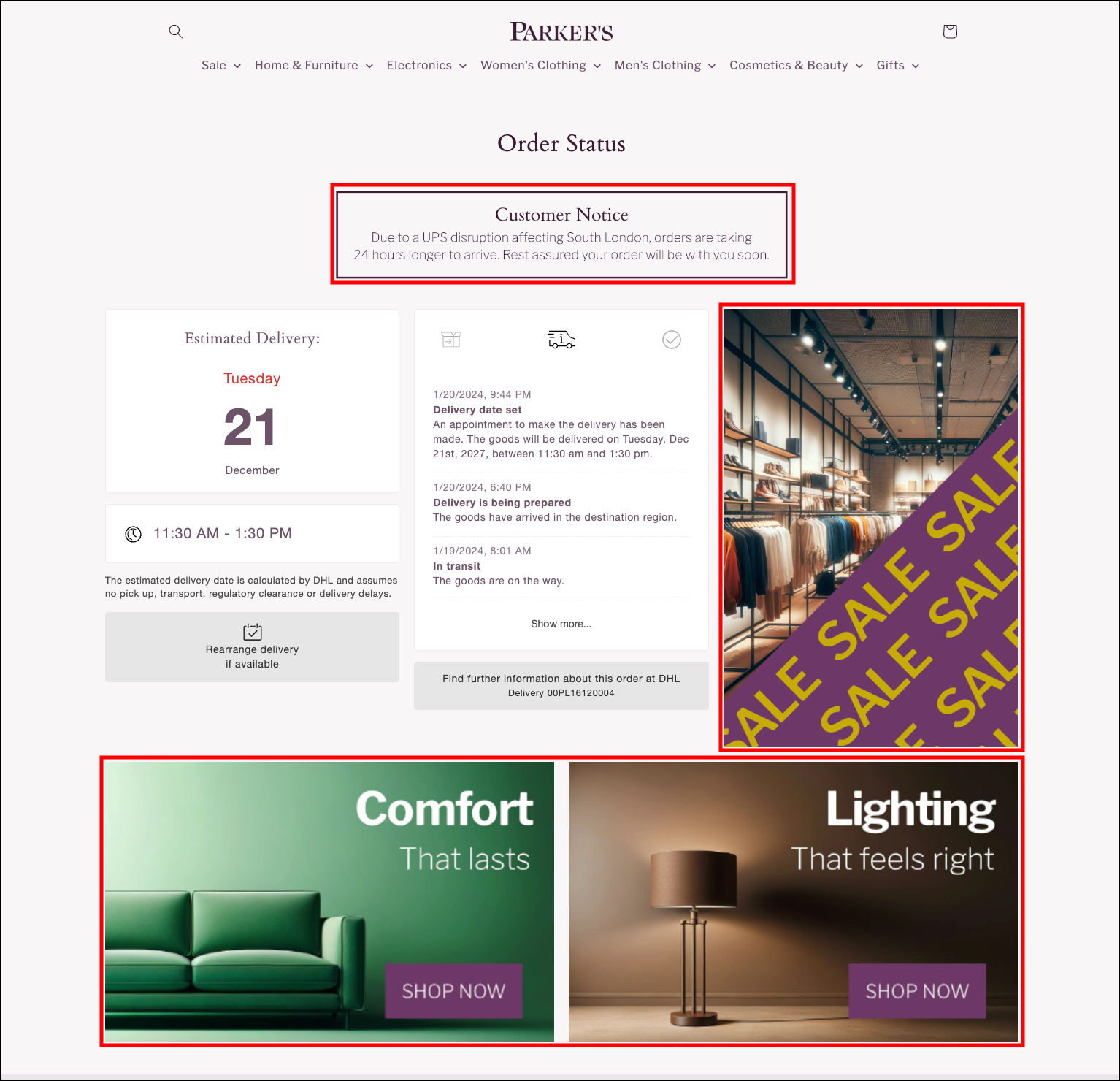
You can use the Campaign Manager module in the App to add and update campaigns that display banners on your Order Status page for a set period of time. This is especially useful for event-based marketing (for example: Black Friday and seasonal offers), feedback surveys, and information notices.
{% hint style="info" %}
You must have a shop configured with the Order Status page V5 tracking snippet to publish campaign banners.
{% endhint %}
You can include campaign banners on the right-hand side of the Order Status page. You can also choose to add four other campaign banners at the top or bottom left/right-hand side of the page.
{% hint style="info" %}
If you select to include one banner at the top or bottom of the page, the banner image will be centered rather than positioned on the left or right.
{% endhint %}
In order to activate a campaign, you need to do the following:
* Create a new campaign in the Campaign Manager module in the App and publish it to the Order Status page.
{% hint style="warning" %}
Configured campaign banners will display on the Order Status page by default (that is: are active via `use_campaign_banners: true` in the JavaScript object).
{% endhint %}
You can deactivate campaign banners on the Order Status page using the `use_campaign_banners` option.
You can choose one of these methods to do it:
* In the URL query parameters via `&use_campaign_banners=false`
* In the JavaScript object via `use_campaign_banners: false`
{% hint style="info" %}
During the campaign period, the campaign banner will override the Order Status page's regular banner options as well as the Instagram plugin. If a campaign is active, the banner image and URL set via the `banner_image` and `banner_link` options will be ignored.
{% endhint %}
### Article Lists
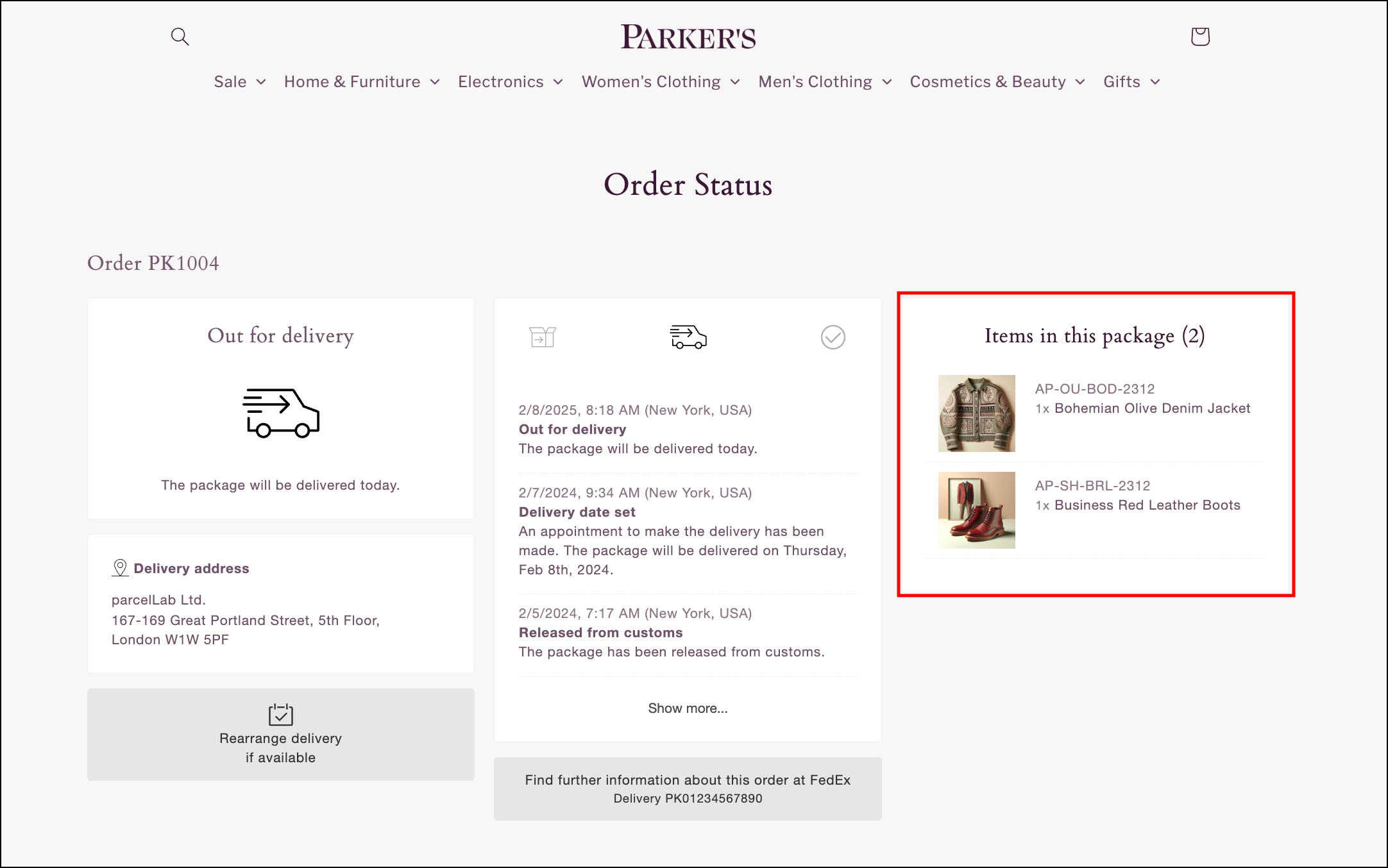
You can include a list of the purchased products in a package on the right-hand side of the Order Status page.
{% hint style="info" %}
If there are more than four items in the article list, a Show More button is available to display the remaining items.
{% endhint %}
You can choose one of these methods to display an article list:
* In the URL query parameters via `&show_articleList=true`
* In the JavaScript object when loading via `show_articleList: true`
* Via a [security hash](/docs/developers/v2/status-updates/configuration/retrieving-the-security-hash.md) or zip code in the URL query to retrieve the data
{% hint style="info" %}
If you have a banner also defined (that is: the `banner_image` and `banner_link` are present in the URL query), then this has precedence in what is displayed on the right-hand side of the page. This means the banner will be displayed instead of the article list.
{% endhint %}
### Styling
You can change the styles to suit your brand's needs by setting the `customStyles`.
The styles that can be set are described in the following table.
| Option | Description | Sample/Default |
| ------------------ | ------------------------------------------------------------- | ------------------ |
| borderColor | The border color for the boxes. | #eee |
| borderRadius | The border radius for the boxes and buttons. | 4px |
| buttonColor | The text color for buttons. | #333 |
| buttonBackground | The background color for buttons. | #e6e6e6 |
| iconColor | The color for the status icons. | #000 |
| icon\_theme | Enables holiday-themed status icons. | `xmas` or `easter` |
| liveMapBackground | The background color of the live tracking map footer. | 0051BA |
| liveMapColor | The text color in the live tracking map footer. | ffffff |
| tabIconColor | The color of tab icons for multi parcel deliveries. | 000 |
| tabActiveIconColor | The color of the active tab icon for multi parcel deliveries. | 000 |
Custom Styles Example
In this example, the box and button border-radius are set to 0px and the button color changed to black by setting the `options` object.
{% code title="custom-style.js" %}
```javascript
...
```
{% endcode %}
When setting `customStyles` via the URL query, the following validation applies:
* Any `#` must be removed from hex color codes
* All content must be URI encoded (for example: `www.versand-status.de/?trackingNo=...&borderRadius=0px&buttonColor=FFF`)
When setting custom styles in the JavaScript object, hex color codes can be used with or without `#`, as in the following examples:
* window\.parcelLabTrackAndTrace.initialize({ buttonBackground: '000' });
* window\.parcelLabTrackAndTrace.initialize({ buttonBackground: '#000' });
{% hint style="info" %}
It is also possible to overwrite the CSS if needed but this is not the recommended approach.
{% endhint %}
If you want to use the plugin in a non-customer facing website (for example: an internal page for customer support), it is recommended to hide the action box.
```markup
```
### Disable Voting Component
The voting component on the Order Status page is enabled by default. You can choose to disable a part of or the whole component using options that can be set in the URL or in the JavaScript object. These objects are described in the following table.
| Event | Description |
| ----------------- | ----------------------------------------------------------------------------------------------------------------------------------- |
| disableVoting | If set to `true`, disables the thumbs up/down voting feature on the Order Status page. |
| pwrdBy\_parcelLab | If set to `false`, disables the parcelLab branding that is displayed in the thumbs up/down voting feature on the Order Status page. |
### Information Display
You can display additional information on your Order Status page using options that can be set in the URL or in the JavaScript object. These objects are described in the following table.
| Option | Description | Format |
| ----------------- | --------------------------------------------------------------------------------------- | ---------------- |
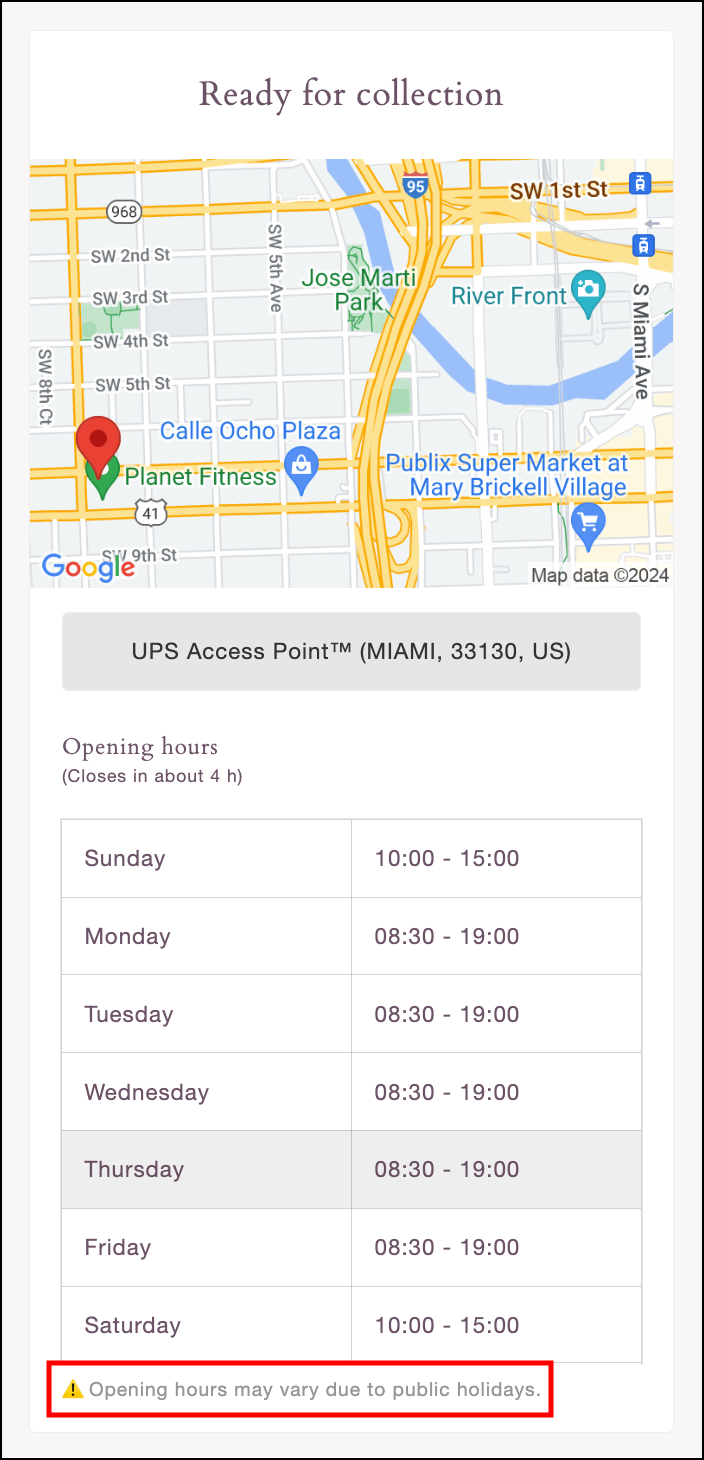
| openinghrs\_warn | Displays additional information for orders with the "ready for pickup" delivery status. | URI encoded text |
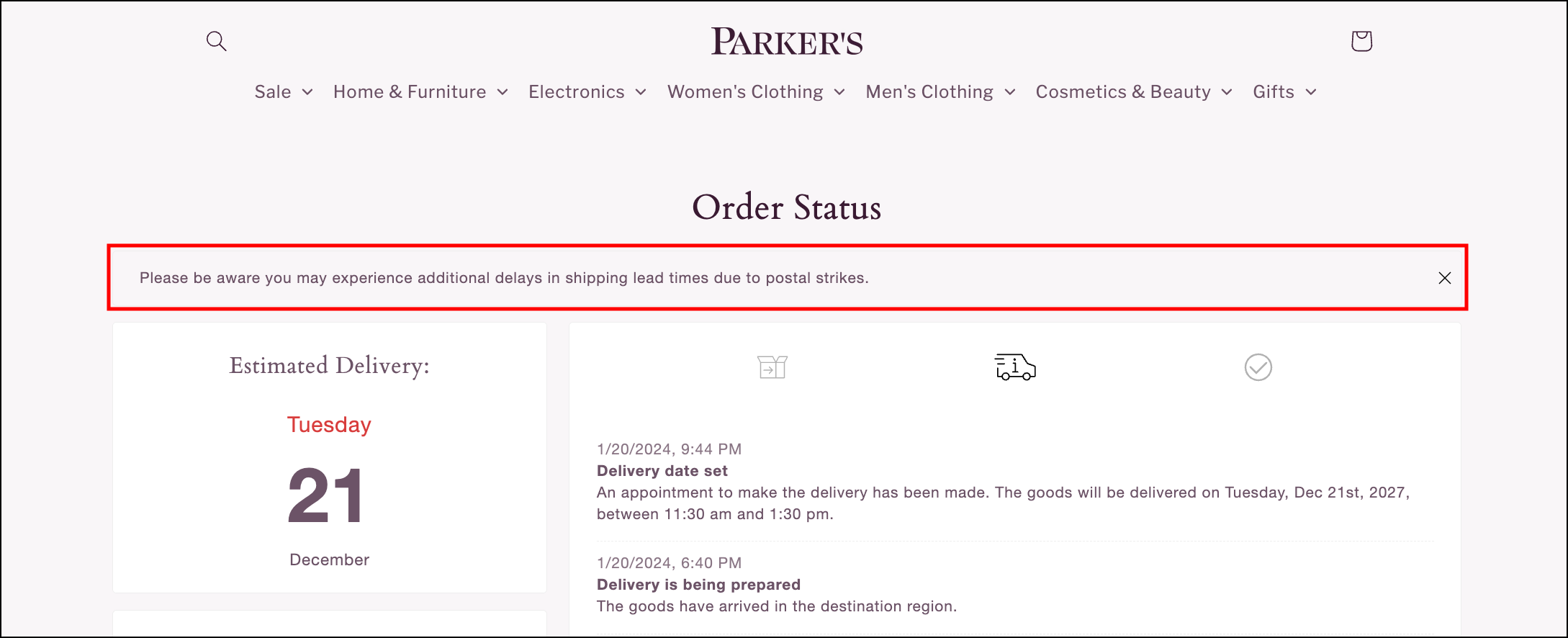
| show\_note | Displays a message at the top of the Order Status page. | URI encoded text |
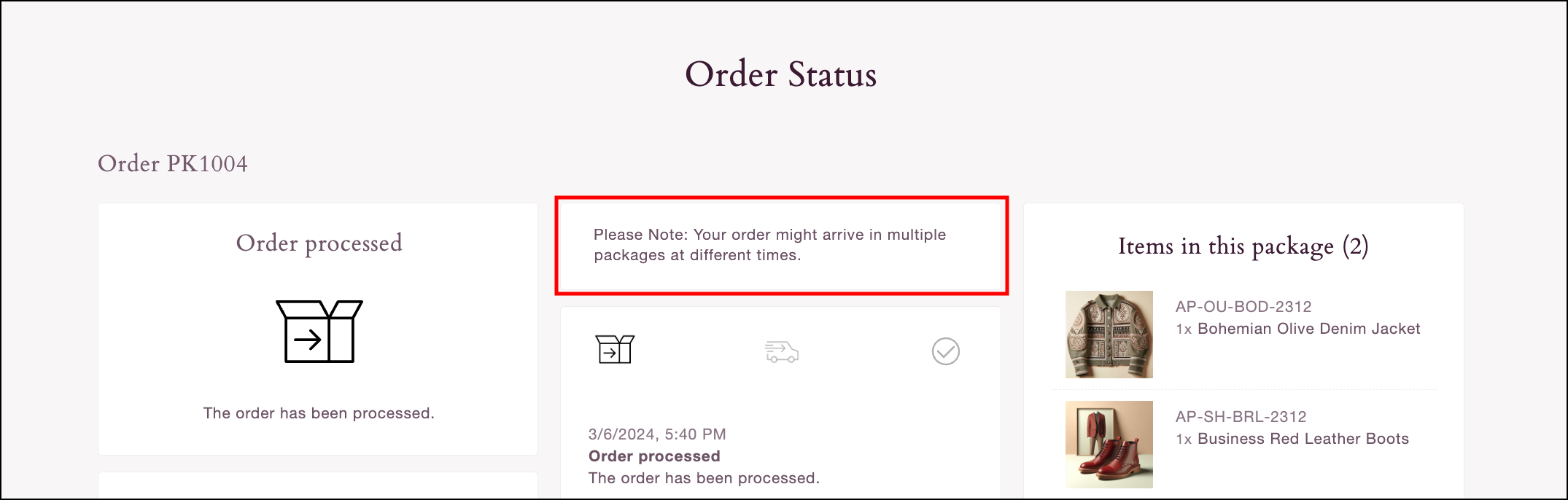
| splitOrderWarning | Displays a warning for split order shipment. | URI encoded text |
The `openinghrs_warn` option is available for orders with the "ready for pickup" delivery status. You can use this option to inform your customers about store or pickup location opening hours or any changes to operating hours.
You can use the `show_note` option to display a message at the top of the Order Status page. The note includes a close button that can be used to hide the displayed message.
The `splitOrderWarning` option must be used in conjunction with the option `showArticleList=true`. This can be used to warn customers that an order may consist of multiple deliveries. You can set your own message or display the default message by setting the value of the `splitOrderWarning` option as `true`.
### SMS Opt-In
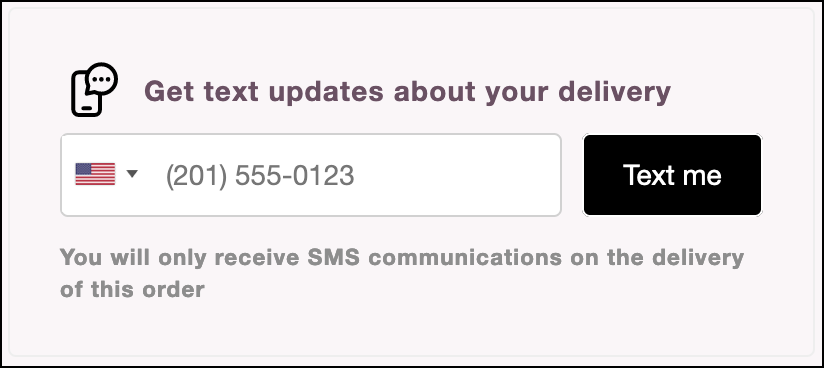
You can display an SMS opt-in field for customers to enter a phone number to receive delivery updates via SMS. You can activate the SMS opt-in component by adding the `&smsOptin=true` query to the URL or the snippet configuration.
{% hint style="info" %}
The URL needs to contain a security hash generated by our system (for example: `&s=123456789`) in order to enable the SMS opt-in field.
{% endhint %}
{% tabs %}
{% tab title="Opt-In Field" %}
The country is pre-set in the number input field based on the destination country of the delivery. If this information is unavailable, the country selector displays the first option in the list of countries.
{% endtab %}
{% tab title="Opted-In Note" %}
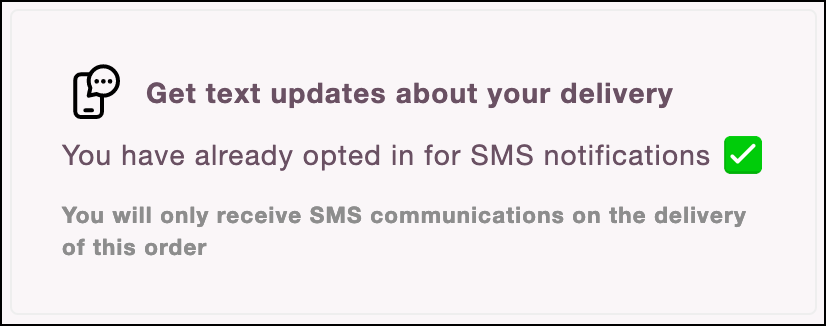
If a customer has already opted in to receive SMS notifications, a note will display confirming that they have already opted in.
{% endtab %}
{% endtabs %}
In order for this feature to work, you also have to use the parcelLab SMS feature. For further information on integrating with parcelLab to send order status updates via SMS, see our parcelLab SMS documentation.
{% content-ref url="" %}
{% endcontent-ref %}
### Trending Late Status
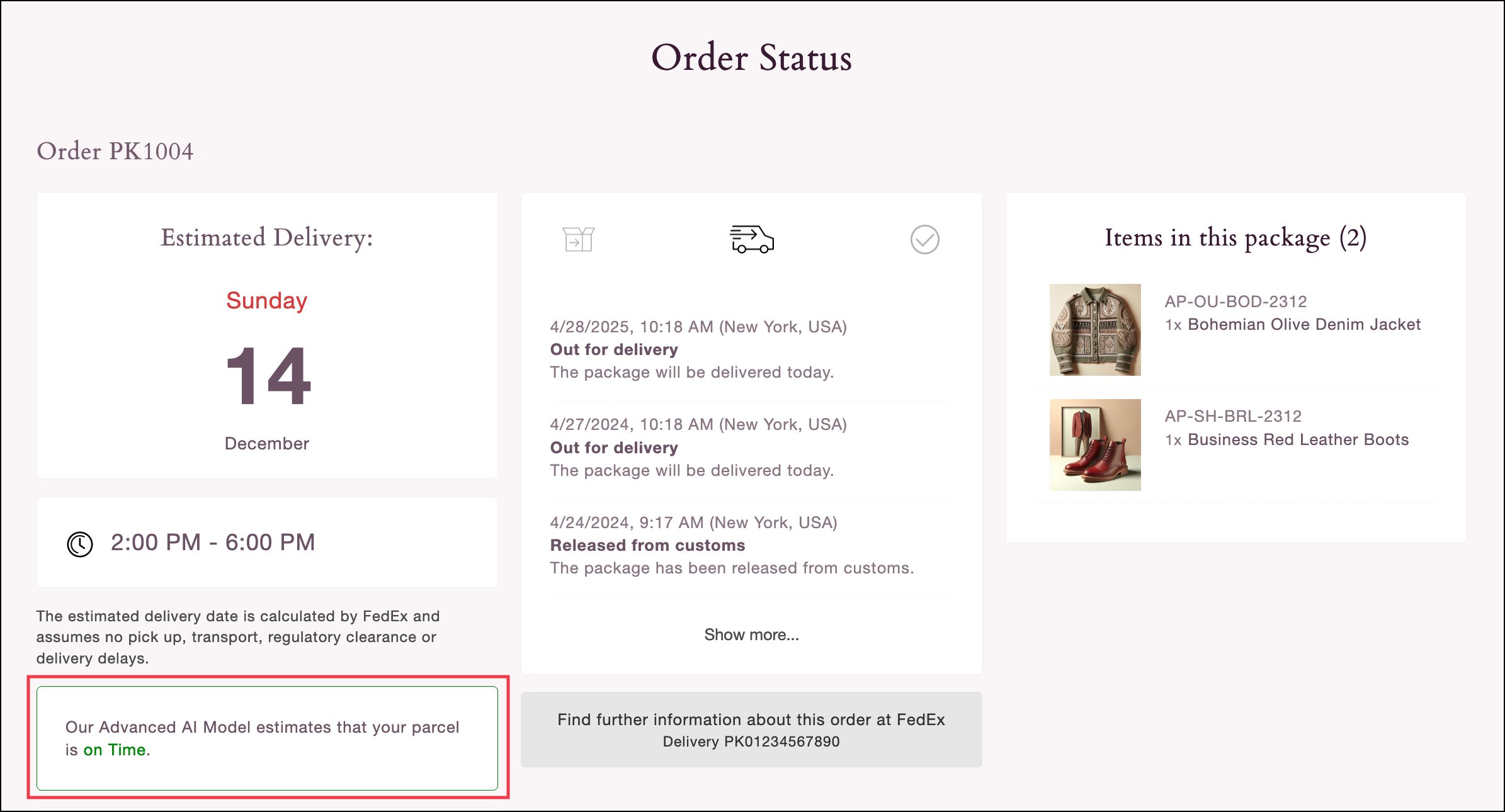
You can display a trending late status on your Order Status page to increase transparency around potential delivery delays to customers.
{% hint style="info" %}
Trending late statuses are not displayed on the Order Status page by default.
You must be using [parcelLab’s Trending Late feature](https://github.com/parcelLab/gitbook-documentation/tree/main/how-parcellab-works/engage/trending-late.md) and activate the display on your Order Status page.
{% endhint %}
You can activate the display of trending late statuses on the Order Status page using the `show_trendingLate` option.
You can choose one of these methods to do it:
* In the URL query parameters via `show_trendingLate=true`
* In the JavaScript object via `show_trendingLate: true`
### Programmatic Access
The selection of the tracking(s) to be displayed is typically performed through the URL but can also be done in code if required for the shop.
The options that can be used are described in the following table.
| Option | Description | Sample |
| ------------------ | ------------------------------------------------------------------------------------------------------------------------------- | ------------------------ |
| courier | The parcelLab carrier code. | dhl-germany |
| trackingNo | The tracking number. | 0034000000001 |
| trackingId | A unique tracking identifier assigned by parcelLab when your order data is received. | 63a4cfe63dd87a685c8df7d4 |
| plUserId | Your parcelLab user ID. | 1612197 |
| orderNo | The associated `orderNo` of the trackings. | ORD-123 |
| selectedTrackingNo | When opening the page with `userId/orderNo`, select a specific tracking to be highlighted using the associated tracking number. | 0034000000001 |
| selectedTrackingId | When opening the page with `userId/orderNo`, select a specific tracking to be highlighted using the associated tracking ID. | 63a4cfe63dd87a685c8df7d4 |
The `selectedTrackingId` option can be used to display trackings on the Order Status page in cases where trackings have yet to be assigned a tracking number.
## Using with UI Frameworks
When you need to use the plugin with a UI Framework (for example: React, Vue, Next, and Nuxt), consider the NPM package. It exports a React and Vue component, which you can simply integrate in your existing app. For further information, see the [usage examples](https://www.npmjs.com/package/@parcellab/js-plugin-utils) in the NPM Readme.
## Alternative Configuration
You can use the following alternative configuration for your Order Status page:
* Include the CSS and JavaScript manually
{% code title="manual-parcellab-track-and-trace-snippet.html" %}
```html
```
{% endcode %}
* Install with shop systems
{% content-ref url="" %}
{% endcontent-ref %}
{% hint style="info" %}
The code is also available as open source on GitHub. Feel free to fork or clone, change and host, or create pull requests.
{% endhint %}
---
# Agent Instructions
This documentation is published with GitBook. GitBook is the documentation platform designed so that both humans and AI agents can read, navigate, and reason over technical content effectively. Learn more at gitbook.com.
## Querying This Documentation
If you need additional information that is not directly available in this page, you can query the documentation by asking a question.
Perform an HTTP GET request on the following URL with the `ask` and `goal` query parameters:
```
GET https://docs.parcellab.com/docs/developers/status-updates/order-status-page-configuration.md?ask=&goal=
```
`ask` is the immediate question: it should be specific, self-contained, and written in natural language.
`goal` is what the user is ultimately trying to achieve, the reason they need the answer. Sharing it helps GitBook give you a better, more relevant answer. A goal is most helpful when it describes the outcome the user wants rather than restating the question. For example, with `ask=how do I create an API token`, a goal like `automate deployments from our CI pipeline` lets GitBook tailor the answer to that use case.
The response will contain a direct answer to the question and relevant excerpts and sources from the documentation.
Use this mechanism when the answer is not explicitly present in the current page, you need clarification or additional context, or you want to retrieve related documentation sections.