> For the complete documentation index, see [llms.txt](https://docs.parcellab.com/docs/llms.txt). Markdown versions of documentation pages are available by appending `.md` to page URLs; this page is available as [Markdown](https://docs.parcellab.com/docs/platform/app-store/klaviyo.md).
# Klaviyo
parcelLab offers integration with Klaviyo to allow you to send all post-purchase communications (including returns updates) through the Klaviyo platform.
## Overview
With this integration, you can use Klaviyo to send out the proactive delivery updates that are currently deployed by parcelLab. In the Klaviyo platform, you can create communication flows to send notifications from Klaviyo that use trigger events and order data from the parcelLab system.
## Standard Trigger Events
The standard parcelLab trigger events that can be used to send notifications in the Klaviyo platform are described in the following table.
{% hint style="info" %}
Additional custom events can also be made available for use in Klaviyo.
{% endhint %}
| parcelLab Trigger Name | Description | Klaviyo Metric Name |
| ---------------------------------- | -------------------------------------------------------------------------------------------------------------------------------------------------------------------------------------- | --------------------------------------------- |
| Order Preparation | This notification is sent when a customer’s order has been received and is being processed by the warehouse. | parcelLab: Order Preparation |
| Warehouse Delay | This notification is sent when a customer’s order has been received but is experiencing delays in the warehouse. | parcelLab: Warehouse Delay |
| Dispatch Confirmation | This notification is sent when a customer’s order has been dispatched from your warehouse. | parcelLab: Dispatch Confirmation |
| Scheduled | This notification is sent when the carrier has provided a delivery date for the customer’s order. | parcelLab: Scheduled |
| Delay | This notification is sent when a customer’s order is delayed while in transit. | parcelLab: Delay |
| Pickup Ready | This notification is sent when a customer’s order is: 1) delivered to a post office, parcel shop, or parcel locker; 2) ready for collection. | parcelLab: Pickup Ready |
| Out for Delivery | This notification is sent on the day a customer’s order is out for delivery. | parcelLab: Out for Delivery |
| Out for Delivery Correction | This notification is sent if the customer’s order is not fulfilled within the timeline announced and a new delivery date is provided. | parcelLab: Out for Delivery Correction |
| Failed Attempt | This notification is sent when a delivery was attempted but is unsuccessful. | parcelLab: Failed Attempt |
| Service Notice to Return to Sender | This notification is sent when a customer’s order is being returned to the sender. Additional notifications for the order en route to the sender will be suppressed from the customer. | parcelLab: Service Notice to Return to Sender |
| Return Warning | This notification is sent when a customer has: 1) selected “drop-off” as their return method; 2) not yet deposited their return parcel at a drop-off location. | parcelLab: Return Warning |
| Return Delayed | This notification is sent when a customer’s return is delayed while in transit. | parcelLab: Return Delayed |
| Return Received | This notification is sent when a customer’s return has been delivered to your warehouse. | parcelLab: Return Received |
| Return Processed | This notification is sent when a customer’s return has been processed and their reimbursement is being issued. | parcelLab: Return Processed |
## Configuring the Klaviyo Integration
The following sections describe the configuration required for the Klaviyo integration with parcelLab.
### Customer Requirements
For successful configuration of the Klaviyo integration, the following requirements must be met:
* An active account with parcelLab and Klaviyo.
* Outbound and/or returns communications set up through parcelLab with current order data in the parcelLab system.
* Connect your Klaviyo account with parcelLab (see [how to set up via OAuth below](#set-up-klaviyo-oauth-connection))
{% hint style="info" %}
You can also provide parcelLab with your Klaviyo public API key to connect with Klaviyo, which you can find from the Settings section of your Klaviyo account.
{% endhint %}
#### Set Up Klaviyo OAuth Connection
{% hint style="info" %}
We recommend connecting your Klaviyo account using OAuth to enable secure access to your data.
{% endhint %}
To authenticate with Klaviyo:
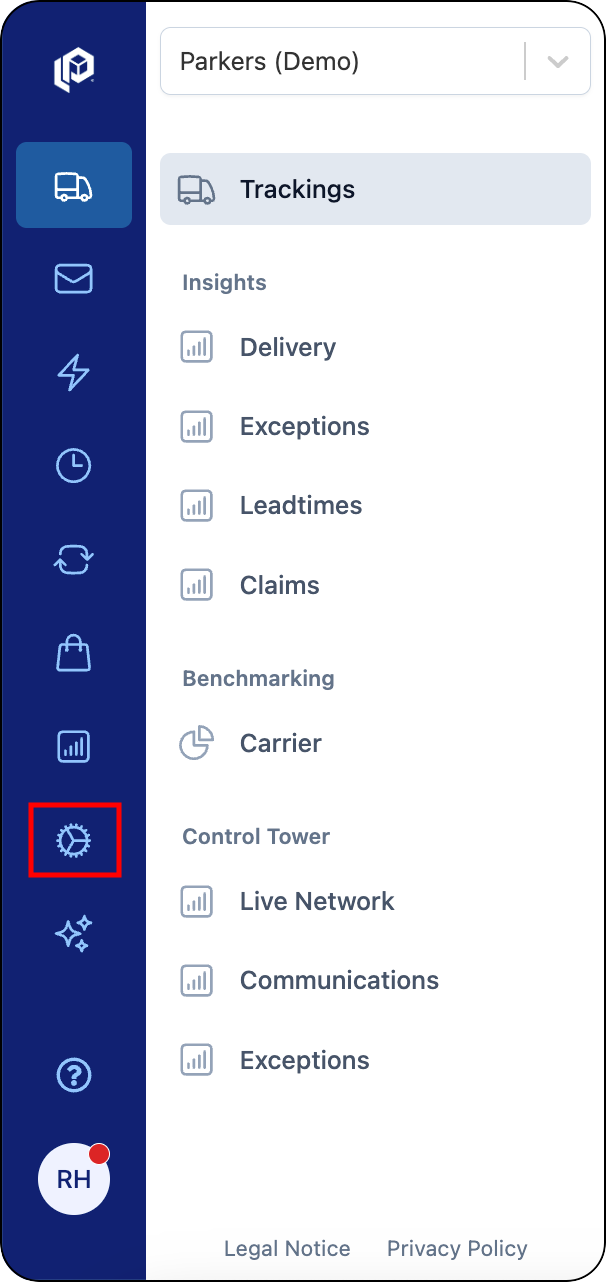
1. In the parcelLab App, click the **Admin** option in the global navigation menu.
The Admin module is where certain administrative functions for App users can be found.
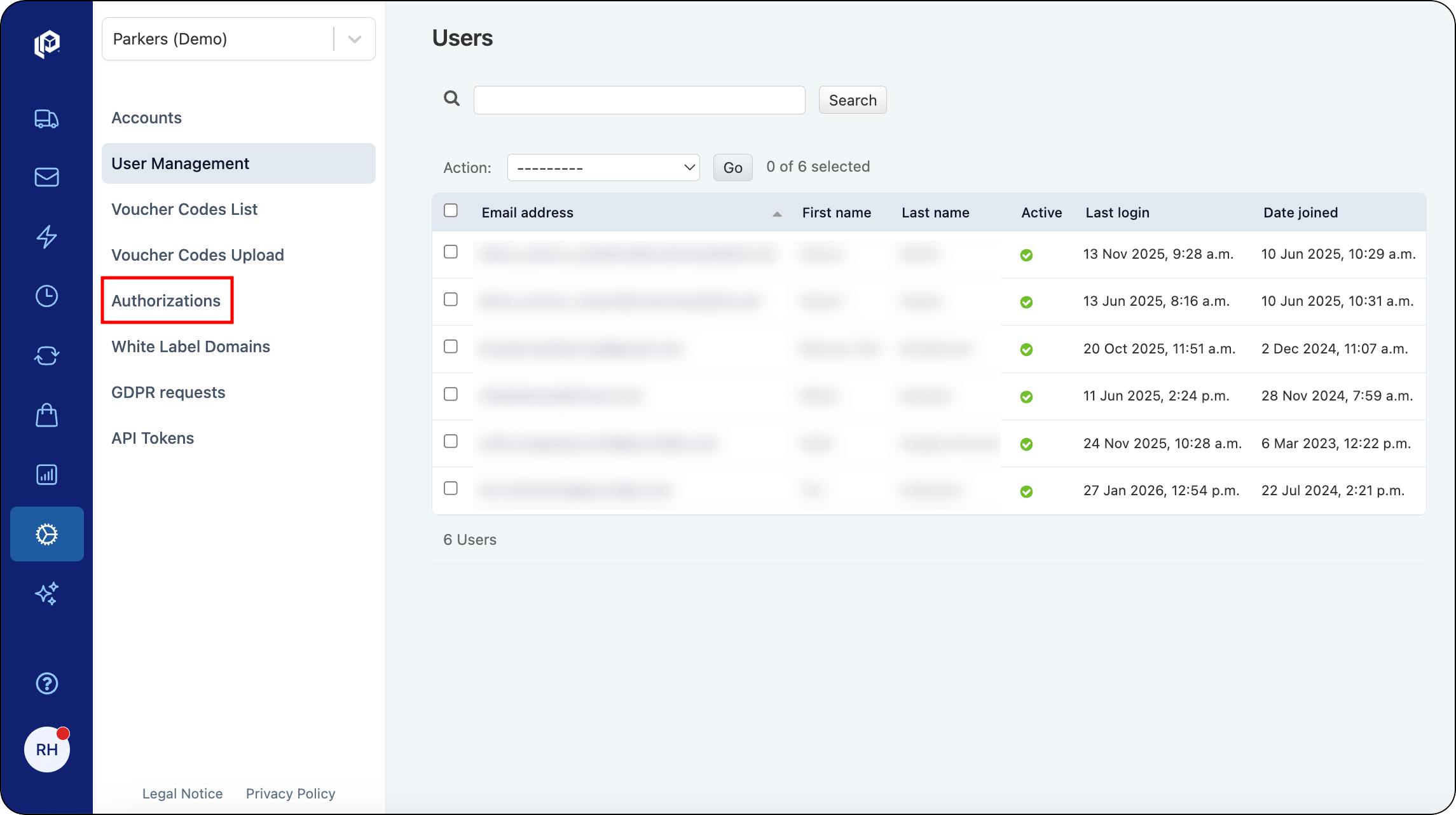
2. Click the **Authorizations** option in the navigation pane.
You must have the Account Setup Admin permission assigned to access integrations.
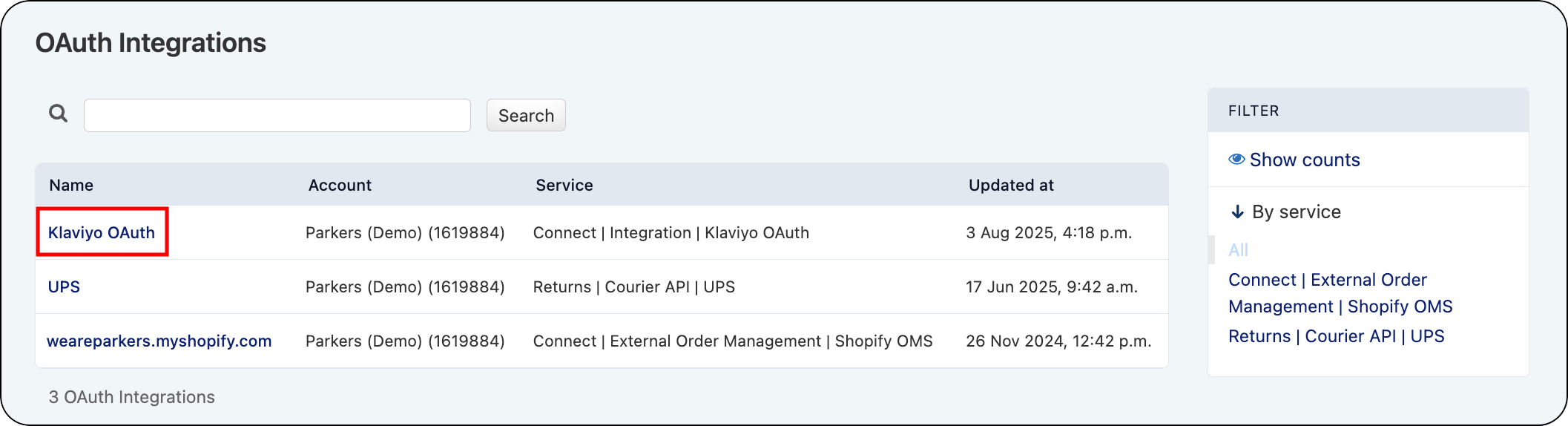
The Authorizations section of the Admin module will display, showing a list of integrations for your account.
3. Select the Klaviyo OAuth integration from the list.
The Klaviyo integration will be available for authentication when parcelLab has done the initial set up for your account.
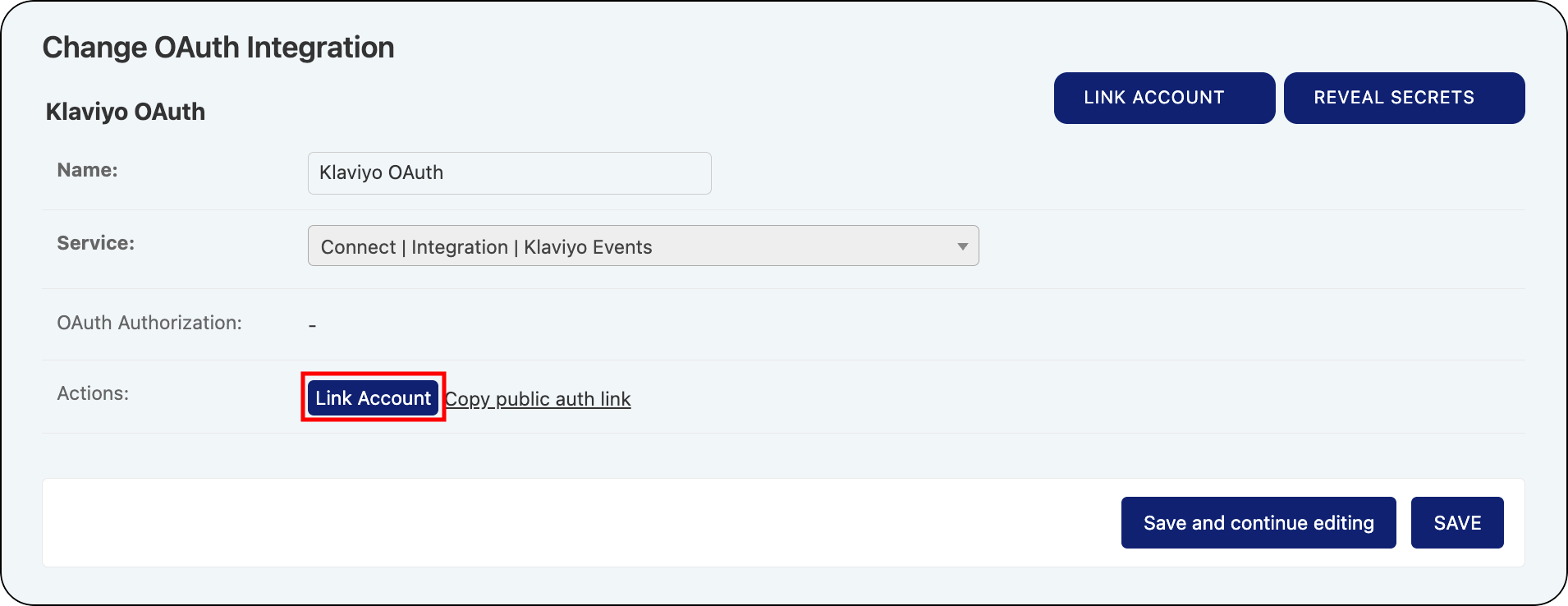
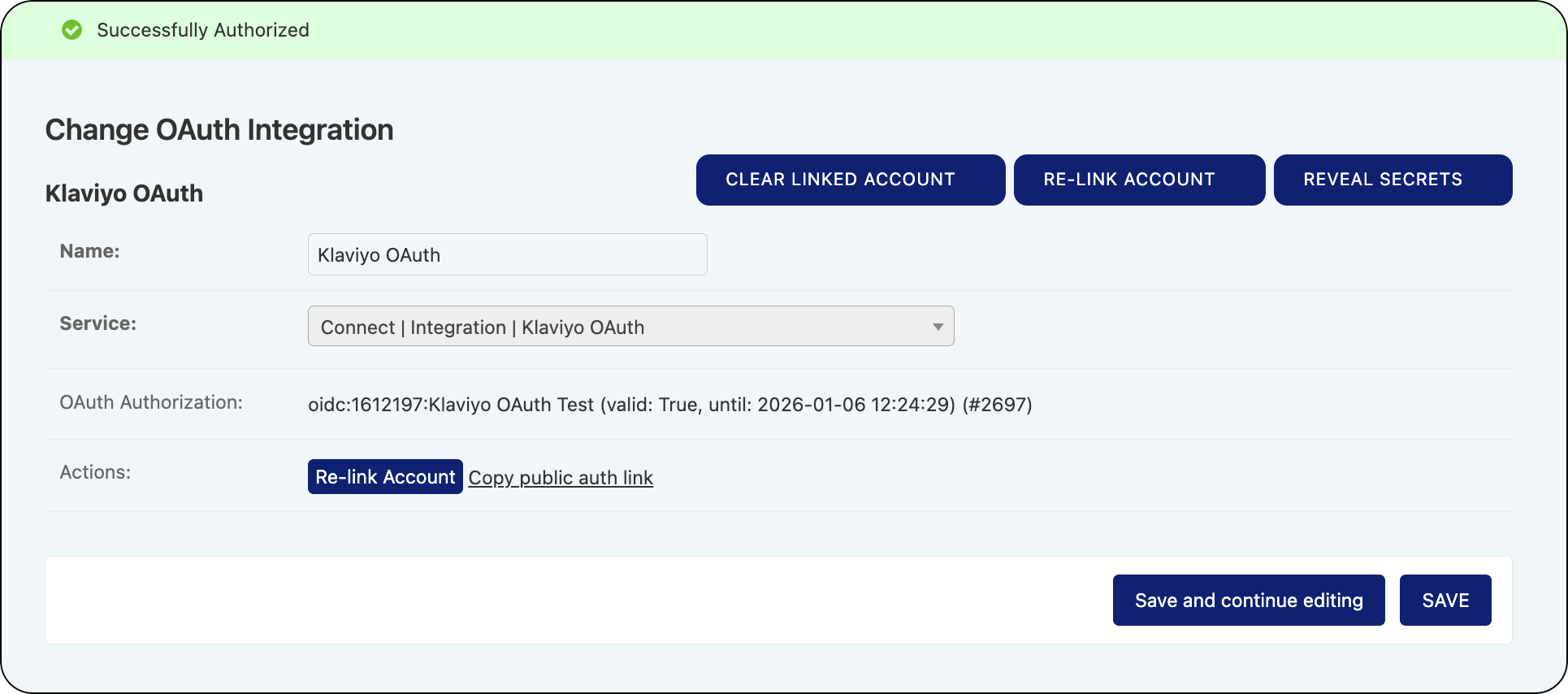
The Change OAuth Integration page will display for the Klaviyo integration.
4. Click the **Link Account** option to initiate the authentication process.
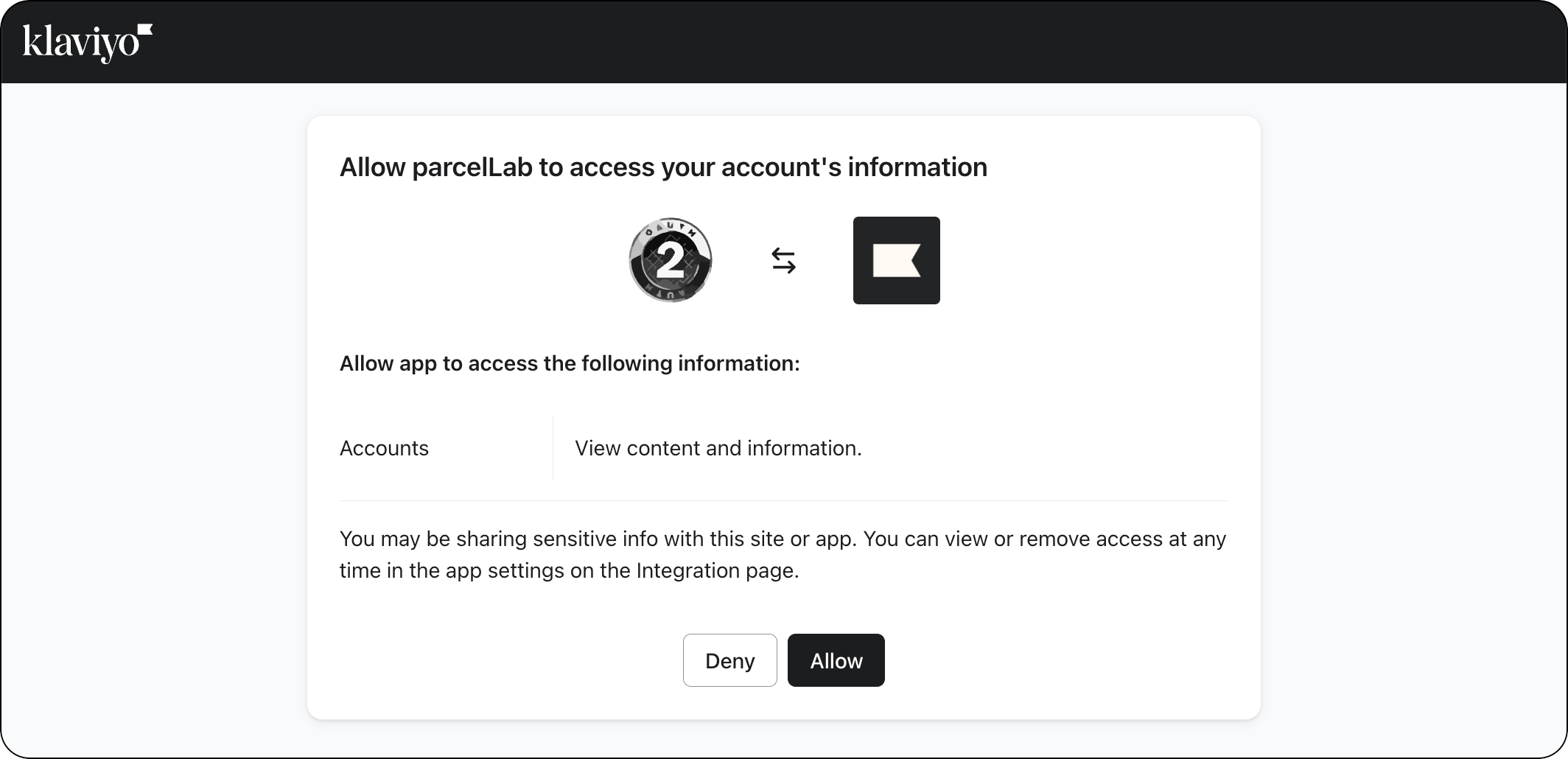
You will be redirected to the Klaviyo website to authorize parcelLab to connect to your Klaviyo account.
5. Follow the on-screen instructions to complete the authentication process.
When the authentication process is finished, the Klaviyo integration will show as connected to your account in the App.
### Implementation Process
When the required information is provided, parcelLab can integrate with the Klaviyo platform and send the order and status update information for the supported trigger events to enable the configured communications to be sent via Klaviyo.
{% hint style="info" %}
For more information on the scope and requirements of integrating Klaviyo, please contact your parcelLab representative.
{% endhint %}
### Create Communication Flows in Klaviyo
You can create flows for your communications (that is: emails and SMS) in Klaviyo using the trigger events from parcelLab.
{% hint style="info" %}
These trigger events are referred to as metrics in the Klaviyo platform.
{% endhint %}
#### Create a Communication Flow using Metrics
To create a communication flow in Klaviyo using metrics:
1. Access the flow builder in Klaviyo.
2. Click the **Metric** component in the **Trigger Setup** pane.
3. Select the metric (that is: parcelLab trigger event) to trigger the communication flow, and then click **Done**.
\
The selected metric will display as the trigger event in the main section of the flow builder.
4. Drag and drop the action (for example: email) that you want to occur after the event is triggered.
5. When you have added the required actions, click **Exit**.
The communication flow is saved for the selected metric and communication type.
#### Create a Communication Flow using Segments
You can use segments to configure customer-specific communications, allowing you to customize the communication type and content sent to different customer groups based on the segment settings. You can include parcelLab trigger events as part of custom segments to target your communications to your customers based on different scenarios (for example: for customers that subscribe to marketing content or items that are being returned).
To create a communication flow in Klaviyo using segments:
1. Access the flow builder in Klaviyo, and then click the **Segment** component in the **Trigger Setup** pane.
2. Select the required segment you want to use (that is: these can use parcelLab trigger events).
\
The selected segment will display as the trigger event in the main section of the flow builder.
3. Drag and drop the action(s) that you want to follow the segment (for example: email).
4. When you have added the required actions, click **Exit**.
The communication flow is saved for the selected segment and communication type.
#### Create a Communication Flow using Conditional Split
The following examples show how you can use the conditional split functionality in communication flows to display content differently based on certain values.
Configure Email and SMS Notifications
To configure email and SMS notifications:
1. Access the flow builder in Klaviyo, and then select the required metric (that is: parcelLab trigger event) to trigger the communication flow. For further information, see [how to add communication flows](#create-communication-flows-in-klaviyo).
2. Drag and drop the **Conditional Split** component that you want to occur after the event is triggered, and then add the required condition (that is: if customers have consented to receive SMS notifications) in the **Configuration** section in the left-hand pane.
3. Drag and drop the **SMS** action under the **YES** answer to send SMS messages to those customers that have opted-in to receive order status notifications via SMS.
4. Drag and drop the **Email** action under the **YES** answer (below the SMS action) and the **NO** answer to send email messages providing order status updates for customers that opt-in to receive SMS notifications and those that opt-out respectively.
5. Click **Exit**.
The communication flow is saved to send email and SMS notifications.
Configure Different Emails for Customer Groups
To configure different emails for specific customer groups:
1. Access the flow builder in Klaviyo, and then select the required metric (that is: parcelLab trigger event) to trigger the communication flow. For further information, see [how to add communication flows](#create-communication-flows-in-klaviyo).
2. Drag and drop the **Conditional Split** component that you want to occur after the event is triggered, and then add the required condition (that is: if customers are registered as members) in the **Configuration** section in the left-hand pane.
3. Drag and drop the **Email** action under the **YES** answer to send email messages providing order status updates with additional content for a specific customer group (for example: inform customers registered as members with your brand about membership advantages or offer discounts).
4. Drag and drop the **Email** action under the **NO** answer to send email messages providing order status updates only to those customers for a specific customer group (for example: customers that are not registered as members with your brand).
5. Click **Exit**.
The communication flow is saved to send different email messages based on the defined customer group.
---
# Agent Instructions
This documentation is published with GitBook. GitBook is the documentation platform designed so that both humans and AI agents can read, navigate, and reason over technical content effectively. Learn more at gitbook.com.
## Querying This Documentation
If you need additional information that is not directly available in this page, you can query the documentation by asking a question.
Perform an HTTP GET request on the following URL with the `ask` and `goal` query parameters:
```
GET https://docs.parcellab.com/docs/platform/app-store/klaviyo.md?ask=&goal=
```
`ask` is the immediate question: it should be specific, self-contained, and written in natural language.
`goal` is what the user is ultimately trying to achieve, the reason they need the answer. Sharing it helps GitBook give you a better, more relevant answer. A goal is most helpful when it describes the outcome the user wants rather than restating the question. For example, with `ask=how do I create an API token`, a goal like `automate deployments from our CI pipeline` lets GitBook tailor the answer to that use case.
The response will contain a direct answer to the question and relevant excerpts and sources from the documentation.
Use this mechanism when the answer is not explicitly present in the current page, you need clarification or additional context, or you want to retrieve related documentation sections.