# Customer Service

## Overview

Empower your customer service teams with access to all tracking information and communications sent to your customers in the parcelLab App so they can easily find and manage information related to customer queries.

Extensive search filters are available for more granular filtering of tracking records and customized tracking data exports. You can also display order, tracking, and communication inside helpdesk tools, like Zendesk and Salesforce Service Cloud.

{% hint style="info" %}
If you need any help with setup in the <code class="expression">space.vars.Product\_App</code>, please contact your parcelLab representative.
{% endhint %}

## Take the Tour

Check out the core customer service functions with our interactive demo below.

{% embed url="<https://app.storylane.io/share/rdn1uwoezg2u>" %}

## Customer Service Guide

In the <code class="expression">space.vars.Product\_pLApp</code>, you will be able to:

* Find and access data for tracked parcels.
* Review email notifications and attachments that have been sent to your customers.
* View reports for operations and communication performance.

### Trackings: How to view trackings

In cases where you need to retrieve additional information for a customer, such as the delivery status of their parcel, here’s how you can use the <code class="expression">space.vars.Product\_App</code>’s search functionality on the [App Dashboard](https://app.parcellab.com/) and in the [Trackings module](https://app.parcellab.com/trackings).

<details>

<summary>Find a tracking</summary>

To find a tracking record:

1. In the search field, enter any part of the order data associated with the parcel.\
   The following information can be used to search for a parcel:

   * Tracking number
   * Order number
   * Delivery number
   * Delivery address
   * Recipient’s name
   * Recipient’s email address

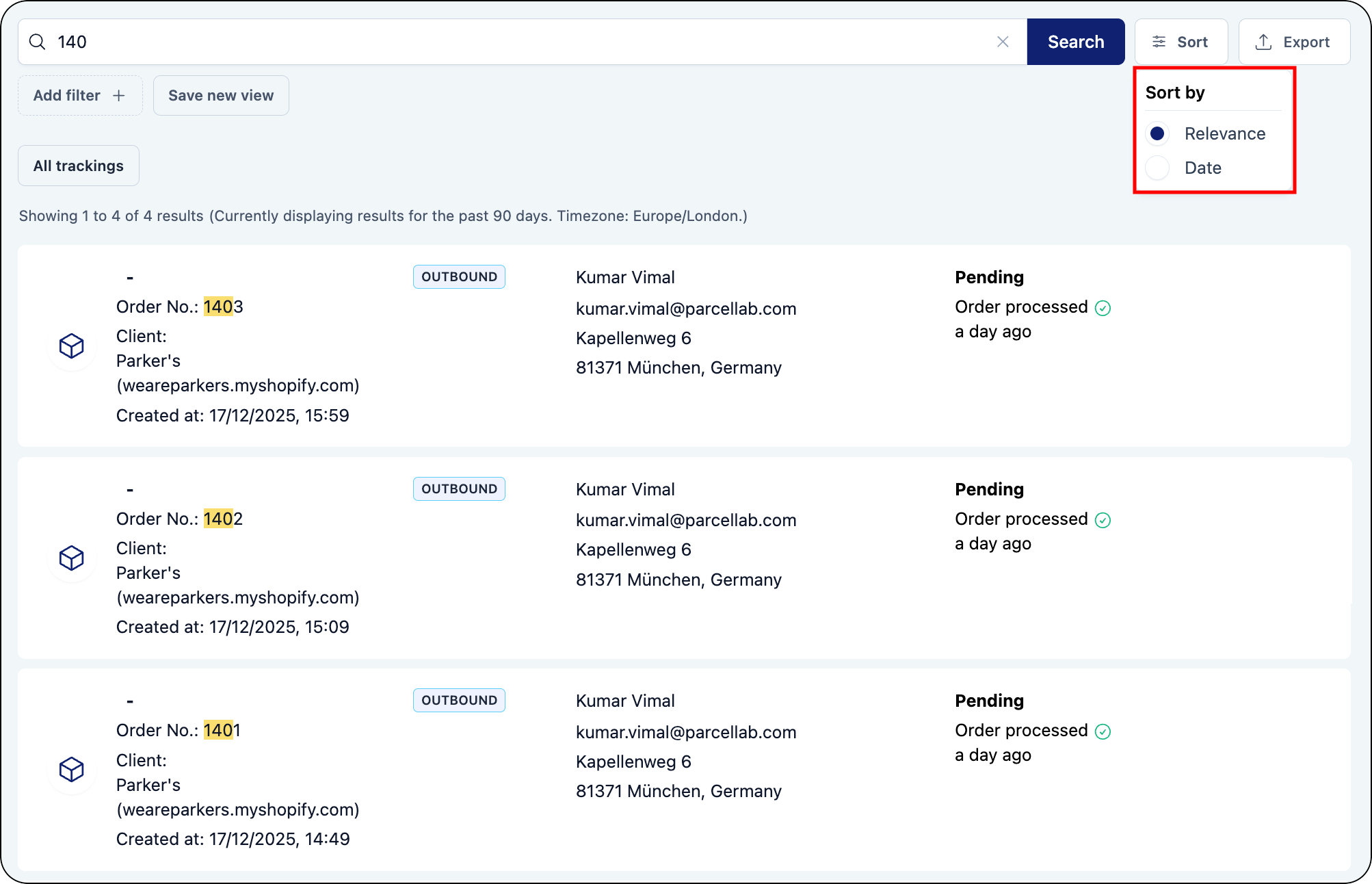
   Among the results that display, your search query will be highlighted in the tracking record. In the following example, the tracking number was entered into the search field.
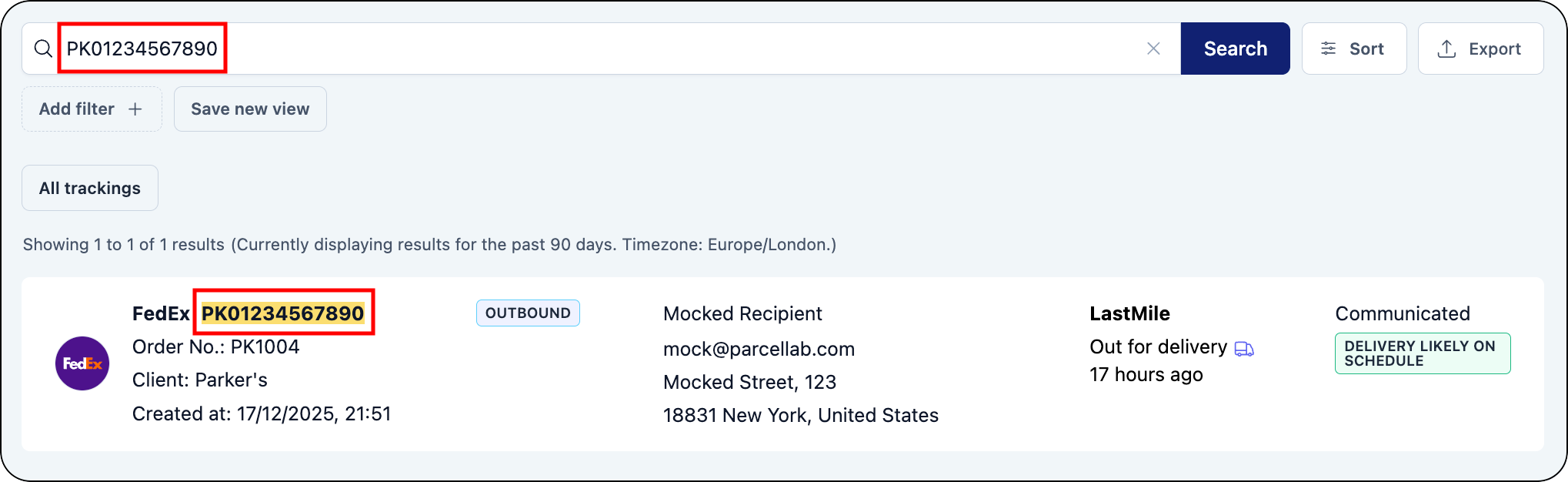
   <div align="left"><figure><img src="https://1156682959-files.gitbook.io/~/files/v0/b/gitbook-x-prod.appspot.com/o/spaces%2F-LPf1Lv1YUuLYva6LrXQ%2Fuploads%2FPezc66J1Z667KWInaUjI%2FTrackingRecordFind.png?alt=media&#x26;token=9912c725-3f8a-4581-ad3b-d1e406068be7" alt="Search terms used are highlighted in the search results" width="563"><figcaption></figcaption></figure></div>

   <div data-gb-custom-block data-tag="hint" data-style="info" class="hint hint-info"><p>When multiple results are returned, the tracking search sorts by relevance with an additional option to sort by date available as well.</p></div>

   <div align="left"><figure><img src="https://1156682959-files.gitbook.io/~/files/v0/b/gitbook-x-prod.appspot.com/o/spaces%2F-LPf1Lv1YUuLYva6LrXQ%2Fuploads%2FO0yq8I9HzhKcwY1Io5vN%2FTrackingRecordFindSort.png?alt=media&#x26;token=fea6bc8c-d087-493e-83db-bbd3f4463947" alt="Tracking search results with sort options highlighted" width="563"><figcaption></figcaption></figure></div>
2. Do one of the following:
   * To view a quick overview of a tracking, click the courier icon for the listed tracking.\
     The Quick View window will display, where you can get an at-a-glance view of the tracking record.

     <div align="left"><figure><img src="https://1156682959-files.gitbook.io/~/files/v0/b/gitbook-x-prod.appspot.com/o/spaces%2F-LPf1Lv1YUuLYva6LrXQ%2Fuploads%2FGwPUz2msR1Y6aKBvCZAa%2FTrackingRecordQuickView.png?alt=media&#x26;token=eda28691-6507-47ed-82c5-f8abfa599142" alt="Tracking record quick view window" width="375"><figcaption></figcaption></figure></div>

     Each quick view displays the following information:

     * Banner with current delivery status and last updated status date
     * Recipient and delivery address details with copy functionality for email and address
     * Journey progress bar
     * Key information with carrier, order number, tracking number, and shop
     * Additional actions to copy the tracking number, open the order status page, and open the carrier page

       <div data-gb-custom-block data-tag="hint" data-style="info" class="hint hint-info"><p>You can click <strong>View Full Details</strong> to open the tracking details page.</p></div>
   * To view the full tracking details, click on the listed tracking.\
     The detailed tracking record will display, where you can retrieve the full details of the tracking.

     <div align="left"><figure><img src="https://1156682959-files.gitbook.io/~/files/v0/b/gitbook-x-prod.appspot.com/o/spaces%2F-LPf1Lv1YUuLYva6LrXQ%2Fuploads%2FlhjUjRlC4phwLjMGUYLX%2FTrackingRecordDetails.png?alt=media&#x26;token=c505cbb4-75ea-4139-a59f-1341e147e7c4" alt="Tracking details page" width="563"><figcaption></figcaption></figure></div>

     Each detailed tracking record consists of the following parts:

     * An overview of the tracking information
     * Clickable buttons to view detailed tracking information
     * The status updates retrieved from the carrier
     * The notifications sent to the customer

{% hint style="info" %}
To enhance your search results, you can enter more than one type of search term (for example: combining a partial tracking number and recipient’s name). The search results displayed will include tracking records that contain any of the search terms used.
{% endhint %}

</details>

<details>

<summary>Select a filter</summary>

You can use the available filters to narrow your search results. More than one filter can be used at a time to customize search results.

To select a filter:

* Click the **Add filter** button.

  <div align="left"><figure><img src="https://1156682959-files.gitbook.io/~/files/v0/b/gitbook-x-prod.appspot.com/o/spaces%2F-LPf1Lv1YUuLYva6LrXQ%2Fuploads%2FnDPmQySKtEPv18srePQn%2FTrackingsFilterAddButton.png?alt=media&#x26;token=f0e3ffed-533c-463d-a515-562ac5f6622e" alt="Add filter button" width="563"><figcaption></figcaption></figure></div>

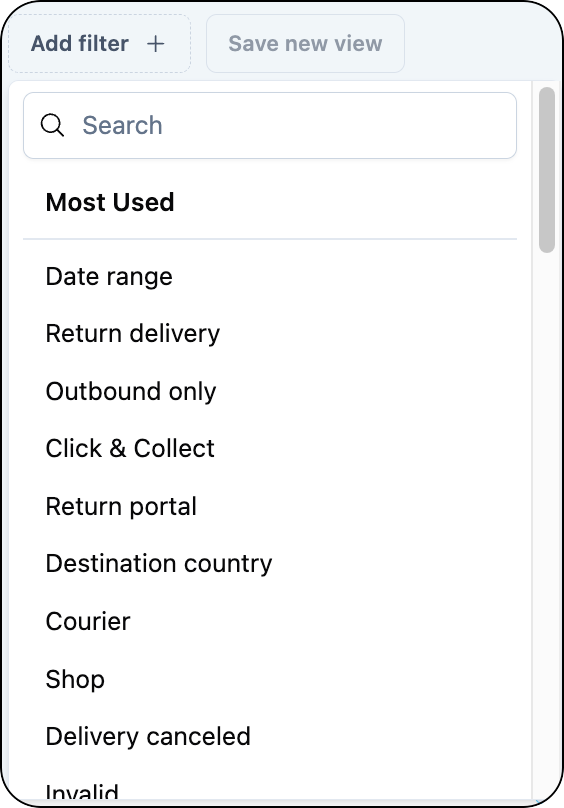
  A drop-down menu will display a list of available filters.<br>

  <div align="left"><figure><img src="https://1156682959-files.gitbook.io/~/files/v0/b/gitbook-x-prod.appspot.com/o/spaces%2F-LPf1Lv1YUuLYva6LrXQ%2Fuploads%2FJ1HL5tz9XIMU1ALDKOv3%2FTrackingsFilterList.png?alt=media&#x26;token=27481fe2-2482-491f-84e0-5edf096d52bb" alt="Available filters list" width="282"><figcaption></figcaption></figure></div>

</details>

<details>

<summary>Save filtered views for trackings</summary>

You can use the filters in the <code class="expression">space.vars.Product\_Trackings</code> module to create customized views for tracking records.

To create a filtered view:

1. Click the **Add filter** button.

   <div align="left"><figure><img src="https://1156682959-files.gitbook.io/~/files/v0/b/gitbook-x-prod.appspot.com/o/spaces%2F-LPf1Lv1YUuLYva6LrXQ%2Fuploads%2FnDPmQySKtEPv18srePQn%2FTrackingsFilterAddButton.png?alt=media&#x26;token=f0e3ffed-533c-463d-a515-562ac5f6622e" alt="Add filter button" width="563"><figcaption></figcaption></figure></div>

   A drop-down menu will display a list of available filters.

   <div data-gb-custom-block data-tag="hint" data-style="info" class="hint hint-info"><p>You can save relative date filters (for example: last 7 days), allowing you to apply up-to-date filters without manually reselecting date ranges. The number of days for the selected date range and the timezone are displayed above the search results to provide a clear view of the current dataset.</p></div>

   <div align="left"><figure><img src="https://1156682959-files.gitbook.io/~/files/v0/b/gitbook-x-prod.appspot.com/o/spaces%2F-LPf1Lv1YUuLYva6LrXQ%2Fuploads%2FJ1HL5tz9XIMU1ALDKOv3%2FTrackingsFilterList.png?alt=media&#x26;token=27481fe2-2482-491f-84e0-5edf096d52bb" alt="Available filters list" width="282"><figcaption></figcaption></figure></div>
2. Select the filters to apply.

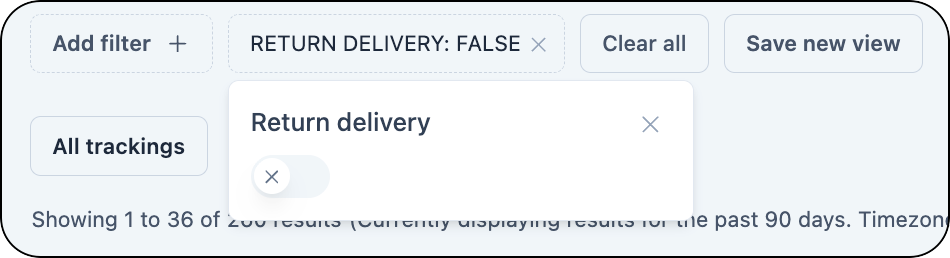
   <div align="left"><figure><img src="https://1156682959-files.gitbook.io/~/files/v0/b/gitbook-x-prod.appspot.com/o/spaces%2F-LPf1Lv1YUuLYva6LrXQ%2Fuploads%2FFkE9Vmp3Bqmh45cpNuxK%2FTrackingsFilterSelect.png?alt=media&#x26;token=3880d9f1-106a-4b84-a814-e0540227fda6" alt="Return delivery filter" width="375"><figcaption></figcaption></figure></div>

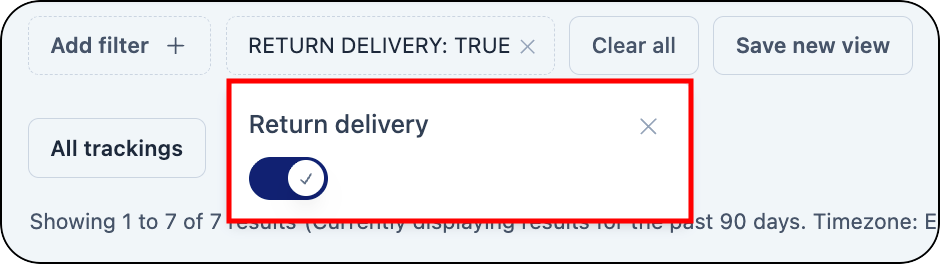
   Depending on the selected filter, you can enable the filter by turning the toggle on or off, or selecting the desired values from a drop-down menu.

   <div align="left"><figure><img src="https://1156682959-files.gitbook.io/~/files/v0/b/gitbook-x-prod.appspot.com/o/spaces%2F-LPf1Lv1YUuLYva6LrXQ%2Fuploads%2FTMR9qOaw1gw5MNvlK084%2FTrackingsFilterSelectReturns.png?alt=media&#x26;token=ddb01c1b-1752-402d-8295-a5ce286d3101" alt="Return delivery filter set" width="375"><figcaption></figcaption></figure></div>

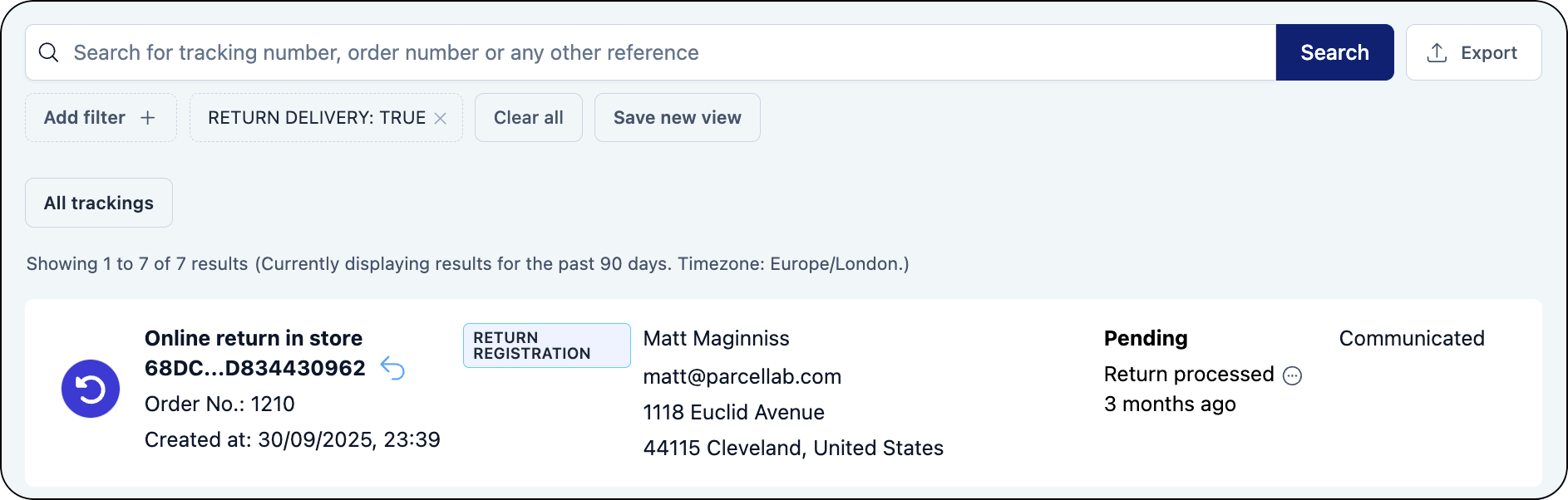
   After enabling the filter, the Trackings page automatically refreshes to display the relevant tracking records.

   <div align="left"><figure><img src="https://1156682959-files.gitbook.io/~/files/v0/b/gitbook-x-prod.appspot.com/o/spaces%2F-LPf1Lv1YUuLYva6LrXQ%2Fuploads%2FzMXhulcB41ErakT4JurT%2FTrackingsFilterSelectReturnsResults.png?alt=media&#x26;token=8e797859-d095-469a-b6d1-1bc8a8eacd97" alt="Trackings search results after applying filters" width="563"><figcaption></figcaption></figure></div>
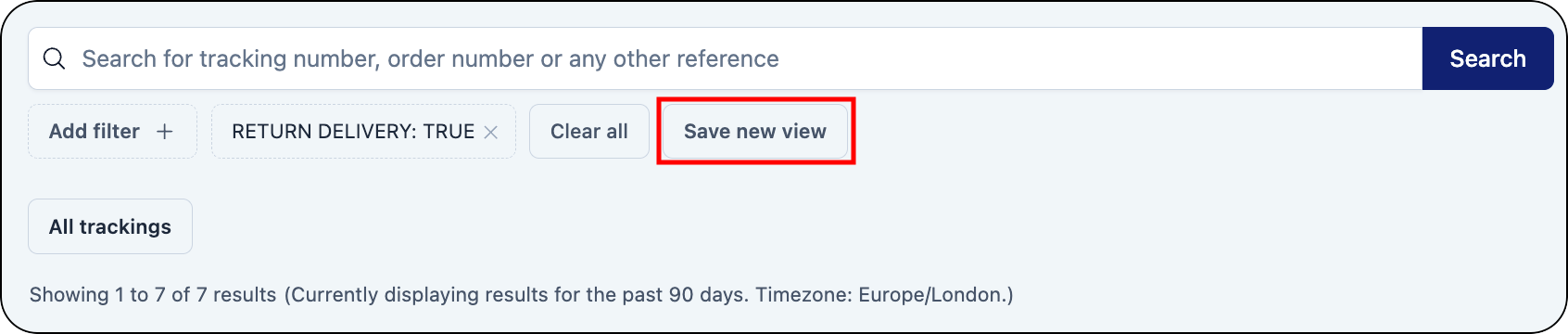
3. To save the filter as a view, click the **Save new view** button.

   <div align="left"><figure><img src="https://1156682959-files.gitbook.io/~/files/v0/b/gitbook-x-prod.appspot.com/o/spaces%2F-LPf1Lv1YUuLYva6LrXQ%2Fuploads%2FIhuXo3CQfEb6GUGzEfaj%2FTrackingsViewSaveButton.png?alt=media&#x26;token=9753d198-2a51-411d-874f-7fd82b5c06e7" alt="Save new view button highlighted" width="563"><figcaption></figcaption></figure></div>

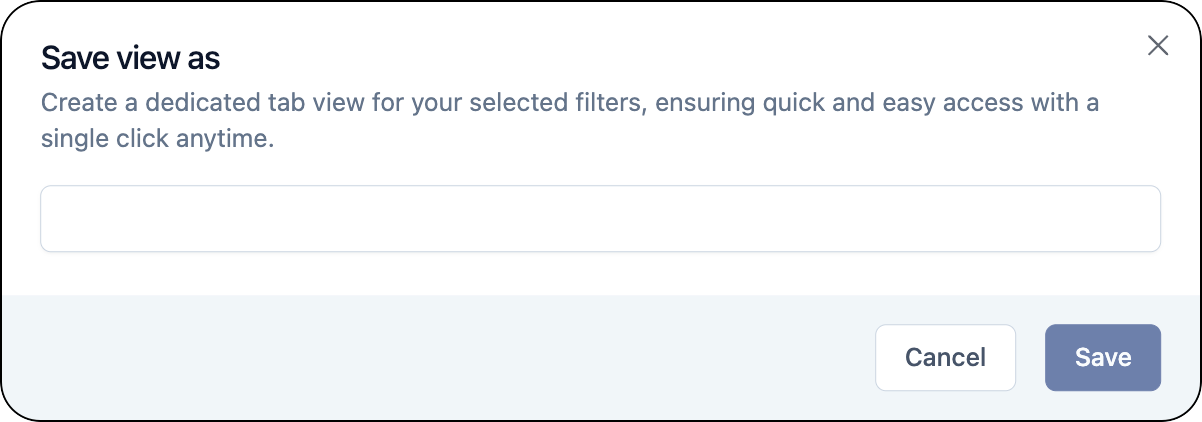
   A pop-up will display, requiring a title for the new filtered view.

   <div align="left"><figure><img src="https://1156682959-files.gitbook.io/~/files/v0/b/gitbook-x-prod.appspot.com/o/spaces%2F-LPf1Lv1YUuLYva6LrXQ%2Fuploads%2FaY82GyGStuFnjZO1XBe7%2FTrackingsViewSaveWindow.png?alt=media&#x26;token=63860a38-0672-49e9-b43f-8bdb99666193" alt="Save view as window" width="375"><figcaption></figcaption></figure></div>
4. Enter a name for the new filtered view.
5. Click **Save**.\
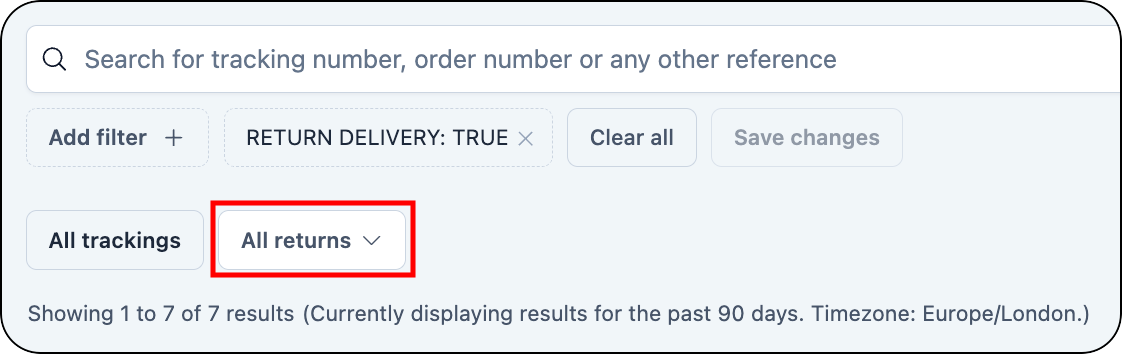
   The filtered view is saved and can be accessed from the Trackings page.

   <div align="left"><figure><img src="https://1156682959-files.gitbook.io/~/files/v0/b/gitbook-x-prod.appspot.com/o/spaces%2F-LPf1Lv1YUuLYva6LrXQ%2Fuploads%2FT14baunem3LdVfFA1eAi%2FTrackingsViewSaved.png?alt=media&#x26;token=ab2609f2-ec83-4ae1-8815-f64a134a72d9" alt="Filtered view saved" width="375"><figcaption></figcaption></figure></div>

</details>

<details>

<summary>Edit filtered views for trackings</summary>

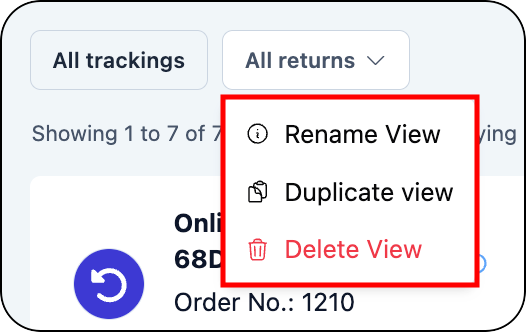
You can make the following changes to your saved views:

* Rename a view
* Duplicate a view
* Delete a view
<div align="left"><figure><img src="https://1156682959-files.gitbook.io/~/files/v0/b/gitbook-x-prod.appspot.com/o/spaces%2F-LPf1Lv1YUuLYva6LrXQ%2Fuploads%2FsMQk0v41OCX1rMcxKrL5%2FTrackingsViewoptions.png?alt=media&#x26;token=4a3cfe2b-566a-47d2-9778-455972cb650f" alt="Options for editing a filtered view" width="263"><figcaption></figcaption></figure></div>

To rename a view:

1. Click on the view you want to rename, then click **Rename View**.\
   A pop-up will display, requiring a title for the new filtered view.
2. Enter a new name for the view.
3. Click **Save**.\
   The view is renamed.

To duplicate a view:

1. Click on the view you want to duplicate, then click **Duplicate View**.\
   A pop-up will display, requiring a title for the new filtered view.
2. Enter a name for the new view.
3. Click **Save**.\
   The view is duplicated and saved. You can modify the duplicated view by adding or removing filters and saving the changes to the selected view.

To delete a filtered view:

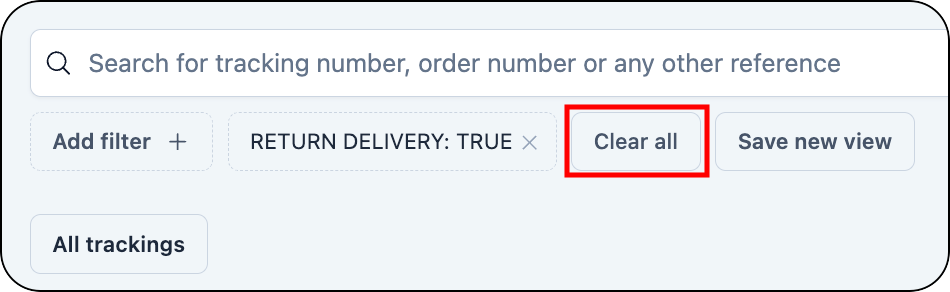
1. Click on the view you want to delete, then click **Delete View**.\
   The filtered view is deleted.
2. To delete the filters applied to the deleted view, click **Clear all**.

   <div align="left"><figure><img src="https://1156682959-files.gitbook.io/~/files/v0/b/gitbook-x-prod.appspot.com/o/spaces%2F-LPf1Lv1YUuLYva6LrXQ%2Fuploads%2F2TgnsXHQSEJy7pkorZfo%2FTrackingsViewClearAll.png?alt=media&#x26;token=b9625107-aba2-40fe-9881-c07de6bf3bcd" alt="Clear all button highlighted" width="375"><figcaption></figcaption></figure></div>

   The filters are removed and the default Trackings view will display.

</details>

### Trackings: Manage tracking records

In the <code class="expression">space.vars.Product\_Trackings</code> module, you can manage key tasks, including to resend emails, initiate returns, and export tracking data.

<details>

<summary>Resend an email</summary>

In cases where a customer may not have received the required information, such as a returns label, here's how you can easily resend an email for the relevant tracking.

To resend an email:

1. Search for and select the required tracking.\
   For further information, see [how to find a tracking record](#trackings-how-to-find-a-tracking).
2. Click the required email record in the Notifications section of the detailed tracking record.\
   The email record will open.
3. Click the **Send email again** button at the top of the email record.

   <figure><img src="https://1156682959-files.gitbook.io/~/files/v0/b/gitbook-x-prod.appspot.com/o/spaces%2F-LPf1Lv1YUuLYva6LrXQ%2Fuploads%2FccnFepdpMS7xnDDTguDW%2FEmailRecordSendEmailAgainButton.png?alt=media&#x26;token=821abed7-0cca-42ac-95f3-728e9e9f5fa8" alt="Send email again button"><figcaption></figcaption></figure>

   A pop-up window will display to confirm the email address and resend the email.\
   ![Re-send email popup requesting confirmation](https://1156682959-files.gitbook.io/~/files/v0/b/gitbook-x-prod.appspot.com/o/spaces%2F-LPf1Lv1YUuLYva6LrXQ%2Fuploads%2FSnJlMPsDOKCWTSeHeU5b%2FResendEmailPopup.png?alt=media\&token=9072e24c-8fa5-41e4-b2b0-eb3253f56244)
4. Check and if required update the email address in the field.
5. Click **Send**.\
   A message will display to confirm you want to send the email to the email address entered.
6. Click **Yes**.\
   A confirmation message will display to notify you whether the email was successfully sent or not.\
   When the message is sent, it will be displayed in the Notifications section of the corresponding tracking and have a *Resend*- prefix.\
   ![Resend-prefix in Notifications section of tracking record](https://1156682959-files.gitbook.io/~/files/v0/b/gitbook-x-prod.appspot.com/o/spaces%2F-LPf1Lv1YUuLYva6LrXQ%2Fuploads%2FaXo5FSamN9LJ6FThW9BK%2FResendPrefixinNotifications.png?alt=media\&token=a561ff51-4b90-4c93-9e1a-f5351855b034)

</details>

<details>

<summary>Submit returns</summary>

You can easily initiate returns to provide a more streamlined process for managing customer returns.

{% hint style="info" %}
You must have a customer service returns portal enabled to use this feature. For more information on the scope and requirements of using this feature, please contact your parcelLab representative.
{% endhint %}

To initiate a return:

1. Search for and select the required tracking. For further information, see [how to find a tracking record](#trackings-how-to-find-a-return-tracking-record).\
   The **Details** tab will open where you can initiate the returns request.
2. Click the **Initiate Return** button.

   <figure><img src="https://1156682959-files.gitbook.io/~/files/v0/b/gitbook-x-prod.appspot.com/o/spaces%2F-LPf1Lv1YUuLYva6LrXQ%2Fuploads%2FLpf1QHG554CEIl43gdoE%2FInitiateReturnsButton.png?alt=media&#x26;token=dffa3dc7-31a4-4471-b211-cefb3f766a17" alt="Initiate Return button"><figcaption></figcaption></figure>

   <div data-gb-custom-block data-tag="hint" data-style="info" class="hint hint-info"><p>If you have more than one instance of your Returns Portal configured (that is: for different countries), you can select the required Returns Portal from the drop-down list.</p></div>

   <figure><img src="https://1156682959-files.gitbook.io/~/files/v0/b/gitbook-x-prod.appspot.com/o/spaces%2F-LPf1Lv1YUuLYva6LrXQ%2Fuploads%2FthZuoO2vbjlZy8zchevh%2FInitiateReturnsButtonDropdown.png?alt=media&#x26;token=8acae6f4-e3a3-4374-8816-16764e7957dc" alt="Initiate Return button with multiple Returns Portals configured"><figcaption></figcaption></figure>

   The selected <code class="expression">space.vars.Product\_ReturnsPortal</code> will display, showing the items from the order that can be returned.

   <div align="left"><figure><img src="https://1156682959-files.gitbook.io/~/files/v0/b/gitbook-x-prod.appspot.com/o/spaces%2F-LPf1Lv1YUuLYva6LrXQ%2Fuploads%2F1er0bOotMTPLWlniUAQz%2FInitiateReturnsRPRegister.png?alt=media&#x26;token=20684d68-ce79-4948-989e-55f5401cbdfa" alt="Embedded Returns Portal" width="563"><figcaption></figcaption></figure></div>
3. Register the return following the standard process:
   1. Select the item(s) to return and the relevant return details (for example: return reason and compensation method), and then click **Proceed**.
   2. Select the return method (for example: carrier drop-off location), and then click **Proceed**.\
      A message will display to confirm the return.
   3. Click **Submit**.\
      The selected item(s) are submitted for return.

</details>

<details>

<summary>Export tracking data</summary>

You can request a file containing all tracking records or a filtered selection of tracking records in the parcelLab system within the last 90 days.

To request a data export:

1. Click the **Export** button on the Trackings page.

   <figure><img src="https://1156682959-files.gitbook.io/~/files/v0/b/gitbook-x-prod.appspot.com/o/spaces%2F-LPf1Lv1YUuLYva6LrXQ%2Fuploads%2FDlp0Qsk9ClqtSwYQZvPF%2FExportButton.png?alt=media&#x26;token=a7eed08f-3bc4-4c1b-a534-382ebd9d9221" alt="Export button"><figcaption></figcaption></figure>

   The Export Filters pop-up will display.\
   ![Export Filters pop-up](https://1156682959-files.gitbook.io/~/files/v0/b/gitbook-x-prod.appspot.com/o/spaces%2F-LPf1Lv1YUuLYva6LrXQ%2Fuploads%2FcbIKYwPACmRdomDBIn8n%2FExportFiltersPopup.png?alt=media\&token=3fceb8ae-3554-4ca7-bbd4-b12e52363313)
2. In the **Export** section, select the Trackings view to export.\
   **Note**: If **All orders** is selected, a pre-filled **Date range** field will display. You can change the date range by clicking the **Cross** button, then selecting a date range for the export.\
   ![Export Filters pop-up with pre-filled date range for exporting all trackings](https://1156682959-files.gitbook.io/~/files/v0/b/gitbook-x-prod.appspot.com/o/spaces%2F-LPf1Lv1YUuLYva6LrXQ%2Fuploads%2F6t9OwgNyvn93Gm52VqCX%2FExportAllOrdersDateRange.png?alt=media\&token=1af8854f-b031-437d-9948-5dae28dec6be)
3. In the **Export as** section, select the file format in which you want to receive the report.
4. Enter the email address that the export will be sent to.
5. Click **Export**.\
   After clicking **Export**, a pop-up will display saying that the export was successfully requested. Once the export is complete, you will receive an email with a link to download the file.

{% hint style="info" %}
Since personal data is deleted after 90 days, trackings that are older than 90 days will be included in the report but without any personal information.&#x20;

For more information, refer to the [Data Export](https://docs.parcellab.com/docs/platform/overview/data-exports) documentation.
{% endhint %}

</details>

### Communications: Configuring communication settings

In the <code class="expression">space.vars.Product\_pLApp</code>, you have the option to edit, block or delete a customer’s email address. This will change where the email communications are sent, if email communications should be sent to an email address, or if the data should be deleted in compliance with GDPR. You can also go to the Communication module to export communication records for a particular communication channel.

<details>

<summary>Edit a customer's email address</summary>

To edit a customer’s email address:

1. Search for the customer's email address in the **Trackings** module.
2. Click on the tracking record.
3. In the detailed tracking view, select the **Change email** option in the detailed tracking record.

   <figure><img src="https://1156682959-files.gitbook.io/~/files/v0/b/gitbook-x-prod.appspot.com/o/spaces%2F-LPf1Lv1YUuLYva6LrXQ%2Fuploads%2FtxgOftPcfmRSrB8I7p42%2FChangeEmailButton.png?alt=media&#x26;token=b48f297e-9105-45b1-aa5a-6ec328e65c51" alt="Change email option"><figcaption></figcaption></figure>

   The form will display in a pop-up window, with the email address in the tracking record pre-filled in the **Email** field.\
   ![Change email form](https://1156682959-files.gitbook.io/~/files/v0/b/gitbook-x-prod.appspot.com/o/spaces%2F-LPf1Lv1YUuLYva6LrXQ%2Fuploads%2FzRbUAtVsna4uEuJ9RyDR%2FChangeEmailForm.png?alt=media\&token=f64a7bff-6b8f-4e8c-9ad4-e0dd8c2a52a7)
4. Enter the new email address to be associated to the tracking record.
5. Click **Save**.\
   The new email address is saved.

</details>

<details>

<summary>Block future email communication</summary>

You can stop sending any parcel-related communication to a customer by adding their email address to the deny list.

To add an email address to the deny list:

1. Search for the customer's email address in the **Trackings** module.
2. Click on the tracking record.
3. In the detailed tracking view, select the **Put on deny list** option in the detailed tracking record.

   <figure><img src="https://1156682959-files.gitbook.io/~/files/v0/b/gitbook-x-prod.appspot.com/o/spaces%2F-LPf1Lv1YUuLYva6LrXQ%2Fuploads%2Fa38EaeV4o5xb3LIgBKR5%2FDenylistOption.png?alt=media&#x26;token=212d1890-bbff-4187-a40a-4eb8c812a07e" alt="Put on deny list option"><figcaption></figcaption></figure>

   A pop-up confirmation will display.\
   ![Put on deny list pop-up confirmation](https://1156682959-files.gitbook.io/~/files/v0/b/gitbook-x-prod.appspot.com/o/spaces%2F-LPf1Lv1YUuLYva6LrXQ%2Fuploads%2FBAOlgssG5q352Qbhp1ul%2FPutOnDenylistConfirmationPopup.png?alt=media\&token=6a808aab-751a-4408-bfdf-069664791794)
4. Click **Confirm** to put the email on the deny list.\
   The email address is put on the deny list and the customer will stop receiving delivery notification emails.&#x20;

To remove an email from the deny list:

1. Search for the customer’s email address in the **Trackings** module.
2. Click on the tracking record.
3. In the detailed tracking record, select the **Remove from denylist** option.\
   ![Remove from deny list option](https://1156682959-files.gitbook.io/~/files/v0/b/gitbook-x-prod.appspot.com/o/spaces%2F-LPf1Lv1YUuLYva6LrXQ%2Fuploads%2FqXJc70RbEeVULzcoWObO%2FRemoveFromDenylistOption.png?alt=media\&token=2c4ac95b-b010-4820-945c-cedb75bae652)\
   A pop-up confirmation will display.\
   ![Pop-up requesting confirmation](https://1156682959-files.gitbook.io/~/files/v0/b/gitbook-x-prod.appspot.com/o/spaces%2F-LPf1Lv1YUuLYva6LrXQ%2Fuploads%2F4AP6nRVuT08OsZxpifp7%2FRemoveFromDenylistConfirmationPopup.png?alt=media\&token=d557a97a-bcd9-4dcf-89c8-63745c28e10a)
4. Click **Confirm** to remove the email address from the deny list.\
   The email address is removed from the deny list and the recipient will receive delivery notification emails.

</details>

<details>

<summary>Request GDPR data deletion</summary>

In a tracking record, you can access the form for GDPR deletion (that is: removing all Personally Identifiable Information associated with the email address).

To submit a GDPR deletion request:

1. Search for the customer's email address in the **Trackings** module.
2. Click on the tracking record.
3. In the detailed tracking view, select the **Start GDPR Deletion** option in the detailed tracking record.

   <figure><img src="https://1156682959-files.gitbook.io/~/files/v0/b/gitbook-x-prod.appspot.com/o/spaces%2F-LPf1Lv1YUuLYva6LrXQ%2Fuploads%2Fs7Hl0GybLw3KrNSuYP3c%2FStartGDPRDeletionButton.png?alt=media&#x26;token=e10769cf-f24d-4cf0-afa0-f7ab99aa1ad0" alt=""><figcaption></figcaption></figure>

   The form will display in a pop-up window, with the email address in the tracking record pre-filled in the **Email(s) of the person** field.\
   ![GDPR deletion form](https://1156682959-files.gitbook.io/~/files/v0/b/gitbook-x-prod.appspot.com/o/spaces%2F-LPf1Lv1YUuLYva6LrXQ%2Fuploads%2FhjXTXot9JRVZb0lS6DsZ%2FStartGDPRDeletionForm.png?alt=media\&token=b2a4aa0b-9217-4ac9-a788-bc5a8d5f234f)
4. Do any of the following:

   a. Select **Delete all the data related to this email(s)**.\
   b. Select **Block all messages for this email(s)**.
5. Click **Send Request**.\
   The GDPR deletion request is submitted and a confirmation will display. parcelLab will proceed to implement the GDPR deletion request specified in the form.

   <div data-gb-custom-block data-tag="hint" data-style="info" class="hint hint-info"><p>Confirmation of the data deletion is <em>not</em> sent to the target email(s).</p></div>

</details>

<details>

<summary>Export communication records</summary>

In the <code class="expression">space.vars.Product\_Communication</code> module, you can request a file containing all communication records by communication channel (that is: email or SMS).

To request a data export of return communication records:

1. Click the **Export** button on the relevant communication page.<br>

   <div align="left"><figure><img src="https://1156682959-files.gitbook.io/~/files/v0/b/gitbook-x-prod.appspot.com/o/spaces%2F-LPf1Lv1YUuLYva6LrXQ%2Fuploads%2FUtnhHIVcox26yrC9acg5%2FCommsExportButton.png?alt=media&#x26;token=449fead9-b5ca-4780-b17c-f34b3ed23e43" alt="Export button" width="563"><figcaption></figcaption></figure></div>

   The Export Filters pop-up will display.<br>

   <div align="left"><figure><img src="https://1156682959-files.gitbook.io/~/files/v0/b/gitbook-x-prod.appspot.com/o/spaces%2F-LPf1Lv1YUuLYva6LrXQ%2Fuploads%2Ff63tPfcfe4ZrEkZNhB1P%2FCommsExportWindow.png?alt=media&#x26;token=549047df-425f-45bd-9d2a-57239a7ac2f2" alt="Export Filters window" width="375"><figcaption></figcaption></figure></div>
2. In the **Export** section, select the communications view to export.\
   **Note:** If **All orders** is selected, a pre-filled **Date range** field will display. You can change the date range by clicking the **Cross** button, then selecting a date range for the export.<br>

   <div align="left"><figure><img src="https://1156682959-files.gitbook.io/~/files/v0/b/gitbook-x-prod.appspot.com/o/spaces%2F-LPf1Lv1YUuLYva6LrXQ%2Fuploads%2FEhcgbij7CtlEVtaKA1ID%2FCommsExportWindowDateRange.png?alt=media&#x26;token=84e9ba5f-956f-4943-ba51-306881b22f8c" alt="Export Filters window with field to enter a date range for the export" width="375"><figcaption></figcaption></figure></div>
3. In the **Export as** section, select the file format in which you want to receive the report.
4. Enter the email address that the export will be sent to.
5. Click **Export**.\
   After clicking **Export**, a pop-up will display saying that the export was successfully requested. Once the export is complete, you will receive an email with a link to download the file.

{% hint style="info" %}
For further information on navigating and using the <code class="expression">space.vars.Product\_pLApp</code>, see our [full user guide documentation](https://how.parcellab.works/guides/getting-started/parcellab-app-overview).
{% endhint %}

</details>

## Learn More

View the following topics for more information on using the parcelLab App in your customer service teams:

<table data-view="cards"><thead><tr><th></th><th></th><th data-hidden data-card-target data-type="content-ref"></th></tr></thead><tbody><tr><td><i class="fa-brake-warning">:brake-warning:</i> <strong>Tracking Incident Statuses</strong></td><td>Track alerts for deliveries with incidents.</td><td><a href="customer-service/watchlist">watchlist</a></td></tr><tr><td><i class="fa-file-exclamation">:file-exclamation:</i> <strong>Claims Manager</strong></td><td>Simplify the claims process for customer service teams.</td><td><a href="customer-service/claims-manager">claims-manager</a></td></tr></tbody></table>