# Surveys
## Overview
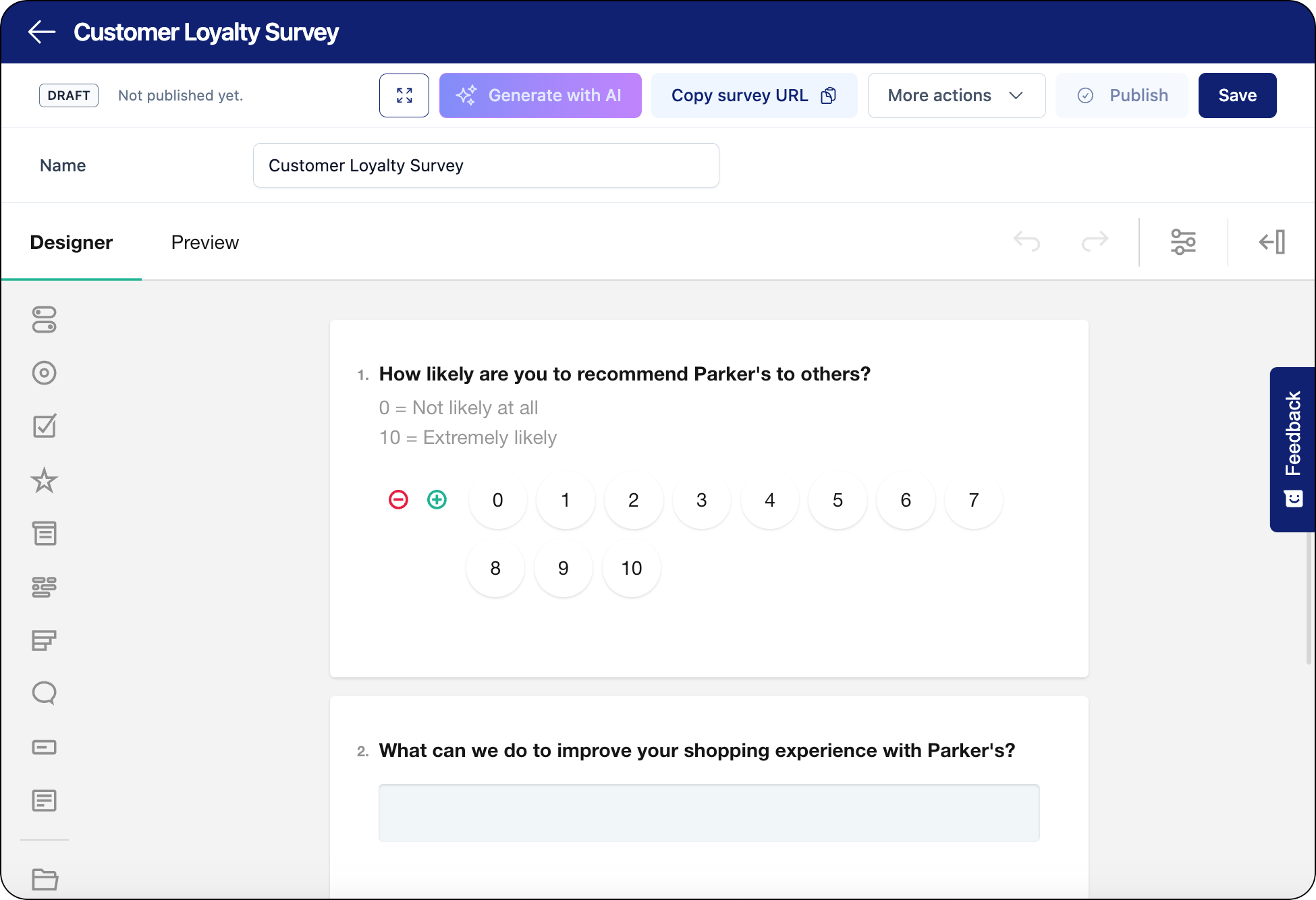
space.vars.Product\_Surveys provides a flexible interface to support experience designers in creating surveys to reach customers at any stage in the post-purchase experience and drive improvements from direct customer feedback.
The survey editor preview enables you to test the survey from the perspective of various users to help you design targeted customer feedback forms. Direct integration in campaigns and messages is available as well as a preview of the survey. When you publish your surveys, they can be embedded in emails, on the space.vars.Product\_OrderStatus and in the space.vars.Product\_ReturnsPortal.
{% hint style="warning" %}
The space.vars.Product\_Surveys feature is a paid upgrade from the [parcelLab NPS](https://docs.parcellab.com/docs/engage/messages-and-journeys/overview/parcellab-nps) feature.
For more information on the scope and requirements for using space.vars.Product\_Surveys, please contact your parcelLab representative.
{% endhint %}
## Take the Tour
Explore space.vars.Product\_Surveys with our interactive demo below.
{% embed url="" %}
## Smart Survey Features
You can manage surveys and survey responses using space.vars.Product\_Surveys.
{% tabs %}
{% tab title="Survey Editor" %}
From the Surveys section, you can:
* Add, edit, duplicate, preview, publish, and archive surveys
* Review responses to published surveys
* Use AI-generated surveys and insights to save time in survey creation and view recommendations on responses respectively
{% endtab %}
{% tab title="Survey Responses " %}
From the Responses section, you can:
* View survey responses and filter them by date, survey and question type.
* Export response data as a .csv or .pdf file
* Navigate from a survey response to the associated tracking and the original survey
{% endtab %}
{% endtabs %}
## Creating a Survey
The following instructions explain the basics of setting up surveys and the configuration required to use them in messages or campaigns.
{% stepper %}
{% step %}
### Create a new survey
* Build your survey by choosing from various question types and setting conditions (that is: direct users to certain survey questions based on previous answers) that can be as simple or complex as required for your use. Leverage AI tools for survey generation and insights on survey responses.
{% hint style="info" %}
Survey recipes can be installed from the space.vars.Product\_AppStore. The requested survey will be added to your account and can be edited to fit your brand's voice.
{% endhint %}
{% endstep %}
{% step %}
### Configure survey settings
* Set up navigation and customize the layout of your survey for user-friendly feedback forms.
{% endstep %}
{% step %}
### Embed survey
* Add published surveys to emails in the [App](https://docs.parcellab.com/docs/engage/messages-and-journeys), or add surveys to campaigns in emails, the space.vars.Product\_OrderStatus or space.vars.Product\_ReturnsPortal using [Campaigns](https://docs.parcellab.com/docs/engage/campaigns).
{% endstep %}
{% endstepper %}
{% hint style="info" icon="book" %}
### Check out the parcelLab guides
For further information on using space.vars.Product\_Surveys, see our [user guide documentation](https://how.parcellab.works/guides/experience-design/automation/smart-survey).
{% endhint %}
---
# Agent Instructions: Querying This Documentation
If you need additional information that is not directly available in this page, you can query the documentation dynamically by asking a question.
Perform an HTTP GET request on the current page URL with the `ask` query parameter:
```
GET https://docs.parcellab.com/docs/engage/surveys.md?ask=
```
The question should be specific, self-contained, and written in natural language.
The response will contain a direct answer to the question and relevant excerpts and sources from the documentation.
Use this mechanism when the answer is not explicitly present in the current page, you need clarification or additional context, or you want to retrieve related documentation sections.