# Returns Portal v1 Snippet

{% hint style="info" %}
This article describes the configuration for Returns Portal **v1**.
{% endhint %}

## Setting Up the Returns Portal Snippet

This following instructions explain the basics of setting up the Returns Portal snippet and how you can customize the data settings and style of the widget in three easy steps.

{% stepper %}
{% step %}

#### Add the snippet to your website

To insert the snippet onto a page on your website or online shop:

1. Create an empty landing page, for example: at `/returns-portal`.
2. Copy the following snippet and paste it somewhere in the `body` (*not* the `head`) of your page where you want the returns portal to be displayed.

{% hint style="info" %}
The best place for the snippet would be a responsive content container of your page where the main content is usually displayed.
{% endhint %}

This will automatically load our JS snippet and default CSS. The plugin will be rendered in the defined DOM node.

Production Environment:

{% code overflow="wrap" %}

```html
<div id="pl-returns-plugin"
  data-user="{{your parcellab user id here}}"
  data-lang-code="{{lang code of your current shop site e.g. de}}"
  data-country-code="{{country code of your current shop site e.g. ch}}"
  data-scroll="off">
</div>
<script src="//returns.parcellab.com/dist/returns-plugin.js" async="true"></script>
<script>(function () {/* Load default styles ... */if(!document.getElementById("pl-returns-portal-styles")){var styles=document.createElement("link");styles.id="pl-returns-portal-styles";styles.rel="stylesheet";styles.href="//returns.parcellab.com/dist/returns-plugin.css";document.getElementsByTagName("head")[0].appendChild(styles)}})();</script>
```

{% endcode %}

Staging Environment:

{% code overflow="wrap" %}

```html
<div id="pl-returns-plugin"
  data-user="{{your parcellab user id here}}"
  data-lang-code="{{lang code of your current shop site e.g. de}}"
  data-country-code="{{country code of your current shop site e.g. ch}}"
data-scroll=”off”>
</div>
<script src="//staging-returns.parcellab.com/dist/returns-plugin.js" async="true"></script>
<script>(function () {/* Load default styles ... */if(!document.getElementById("pl-returns-portal-styles")){var styles=document.createElement("link");styles.id="pl-returns-portal-styles";styles.rel="stylesheet";styles.href="//staging-returns.parcellab.com/dist/returns-plugin.css";document.getElementsByTagName("head")[0].appendChild(styles)}})();</script>

```

{% endcode %}
{% endstep %}

{% step %}

#### Modify the data settings

The data settings of the Returns Portal widget will have to be updated based on the following data elements:

| Data Element      | Description                                                                                                                                                                                                                    | Example |
| ----------------- | ------------------------------------------------------------------------------------------------------------------------------------------------------------------------------------------------------------------------------ | ------- |
| data-user         | <p>Your parcelLab user ID.<br>If you don’t have it to hand, please reach out to your parcelLab representative.</p>                                                                                                             | 1328    |
| data-lang-code    | <p>The ISO-2 language code of your current shop site.<br>The widget will be displayed in the specified language</p>                                                                                                            | de      |
| data-country-code | <p>The ISO-2 country code of your current shop site.<br>This is useful if you shop is present in multiple countries.</p>                                                                                                       | ch      |
| data-scroll       | <p>The setting for an automatic scrolliing to the form on the Returns Portal login page.<br>This setting is <code>off</code> by default. To enable automatic scrolling to the login form, set the flag to <code>on</code>.</p> | on      |

Here is an example of modified data settings:

{% code overflow="wrap" %}

```html
<div id="pl-returns-plugin"
  data-user="1328"
  data-lang-code="de"
  data-country-code="ch"
  data-scroll="on">
</div>
<script src="//returns.parcellab.com/dist/returns-plugin.js" async="true"></script>
<script>(function () {/* Load default styles ... */if(!document.getElementById("pl-returns-portal-styles")){var styles=document.createElement("link");styles.id="pl-returns-portal-styles";styles.rel="stylesheet";styles.href="//returns.parcellab.com/dist/returns-plugin.css";document.getElementsByTagName("head")[0].appendChild(styles)}})();</script>

```

{% endcode %}
{% endstep %}

{% step %}

#### Style the widget

The widget can be styled according to your needs by editing the CSS.

The whole widget is wrapped in a container with `id="pl-returns-plugin"`.

To adjust the overall theme, you can change any of the following global variables:

```css
#pl-returns-plugin { 
 --bg-color: #ffffff;
 --bg-secondary-color: #faf9f8;
 --color-primary: #0098dd;
 --color-lightGrey: #d2d6dd;
 --color-grey: #747681;
 --color-darkGrey: #3f4144;
 --color-error: #d43939;
 --color-success: #62bc5f;
 --grid-maxWidth: 120rem;
 --grid-gutter: 2rem;
 --font-size: 1rem;
 --font-color: #333333;
 --border-radius: 0px;
}
```

To adjust the style for specific elements within the widget, add the prefix `#pl-returns-plugin` for the HTML elements you want to style. In the following example, a font size is specified for `<h1>` elements in the widget.

```css
#pl-returns-plugin h1 { 
 font-size: 2rem;
}
```

To target specific screen sizes, use media queries as seen in the following example.

```css
@media screen and (max-width: 1025px) { 
 #pl-returns-plugin { 
 margin-top: 50px; 
 padding: 0 15px; 
 } 
}
```

Alternatively, as an add-on to the base platform, we can host the Returns Portal for you. The widget will then be implemented on a page that can be styled according to your shop or brand’s design guidelines.
{% endstep %}
{% endstepper %}

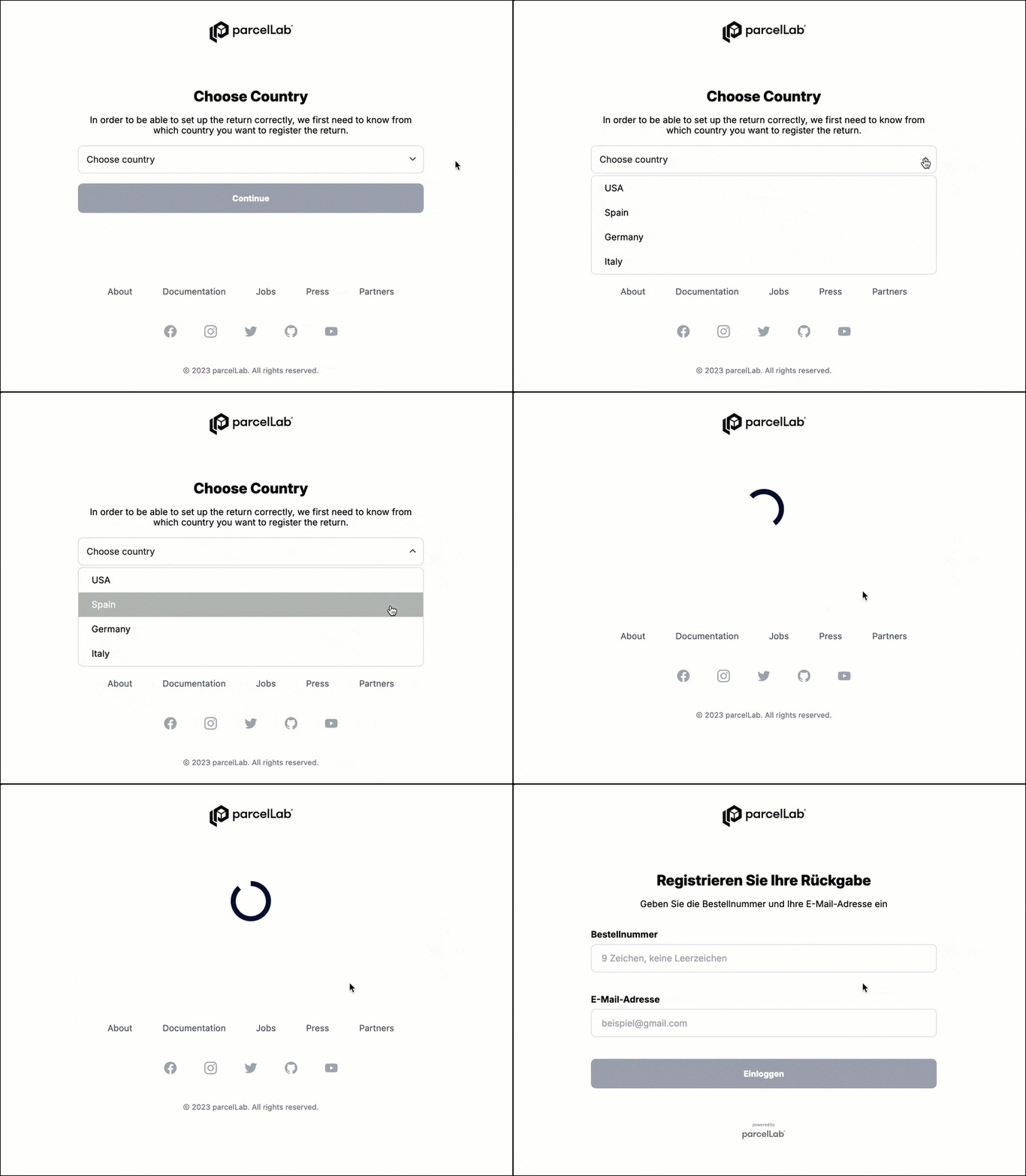
## Configuring Global Returns Portal Selection

If you have multiple Returns Portals for each country or language, you can add our Returns Portal snippet to a landing page where your customers can select the Returns Portal they need to navigate to. This can simplify the implementation of displaying multiple Returns Portals on your website by reducing the number of pages needed to host each snippet.

<figure><img src="/files/LUqlU8f6eaE5u9GU4XuW" alt=""><figcaption></figcaption></figure>

To enable Returns Portal selection on a page on your website or online shop:

1. Create an empty landing page, for example: at `/returns-portal`.
2. Copy the following snippet and paste it somewhere in the `<body />` (*not* the `<head />`) of your page where you want the Returns Portal to be displayed.

{% hint style="info" %}
The best place for the snippet would be a responsive content container of your page where the main content is usually displayed.
{% endhint %}

This will automatically load our JS snippet and default CSS. The plugin will be rendered in the defined DOM node.

Production Environment:

```html
<div id="pl-returns-plugin"
  data-user="{{your parcellab user id here}}"
  data-scroll="off">
</div>
<script src="//returns.parcellab.com/dist/returns-plugin.js" async="true"></script>
<script>(function () {/* Load default styles ... */if(!document.getElementById("pl-returns-portal-styles")){var styles=document.createElement("link");styles.id="pl-returns-portal-styles";styles.rel="stylesheet";styles.href="//returns.parcellab.com/dist/returns-plugin.css";document.getElementsByTagName("head")[0].appendChild(styles)}})();</script>

```

Staging Environment:

```html
<div id="pl-returns-plugin"
  data-user="{{your parcellab user id here}}"
  data-scroll="off">
</div>
<script src="//staging-returns.parcellab.com/dist/returns-plugin.js" async="true"></script>
<script>(function () {/* Load default styles ... */if(!document.getElementById("pl-returns-portal-styles")){var styles=document.createElement("link");styles.id="pl-returns-portal-styles";styles.rel="stylesheet";styles.href="//staging-returns.parcellab.com/dist/returns-plugin.css";document.getElementsByTagName("head")[0].appendChild(styles)}})();</script>

```

## Supported Languages

The Returns Portal is available with default translations in the following languages. Dates and timestamps are automatically formatted according to the configured country and language for your Returns Portal.

<details>

<summary>List of supported languages</summary>

* Albanian
* Bosnian
* Bulgarian
* Chinese (simplified)
* Croatian
* Czech
* Danish
* Dutch
* English (UK)
* English (US)
* Estonian
* Finnish
* French
* German
* German (formal)
* Greek
* Hungarian
* Italian
* Japanese
* Korean
* Latvian
* Lithuanian
* Norwegian
* Polish
* Portuguese
* Romanian (formal)
* Serbian (Latin)
* Slovak
* Slovenian
* Spanish
* Swedish
* Turkish

</details>

{% hint style="info" %}
To modify any of the default translations used in your Returns Portal, please contact your parcelLab representative.
{% endhint %}


---

# Agent Instructions: Querying This Documentation

If you need additional information that is not directly available in this page, you can query the documentation dynamically by asking a question.

Perform an HTTP GET request on the current page URL with the `ask` query parameter:

```
GET https://docs.parcellab.com/docs/developers/v2/returns/v1.md?ask=<question>
```

The question should be specific, self-contained, and written in natural language.
The response will contain a direct answer to the question and relevant excerpts and sources from the documentation.

Use this mechanism when the answer is not explicitly present in the current page, you need clarification or additional context, or you want to retrieve related documentation sections.
